

Claude Integration
Pie.host exposes an MCP server at https://piehost.com/mcp, which lets Claude read your PieSocket, PieDB, PieApp and other resource data directly inside a chat. Connecting it takes a couple of minutes and only needs your Pie.host login, no API keys to copy around.
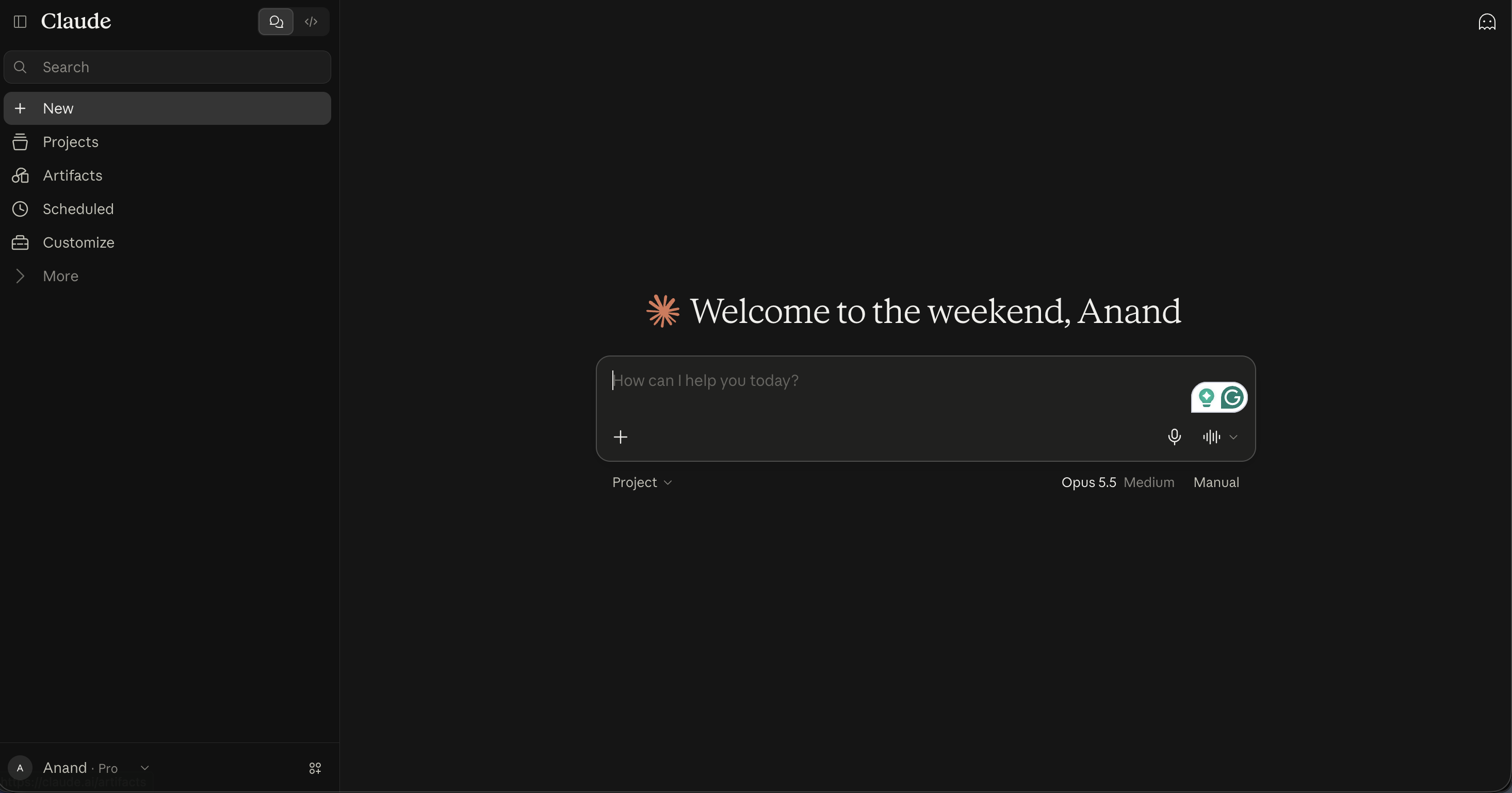
- Open Customize in Claude
In Claude, open the sidebar and go to Customize, then the Connectors tab.
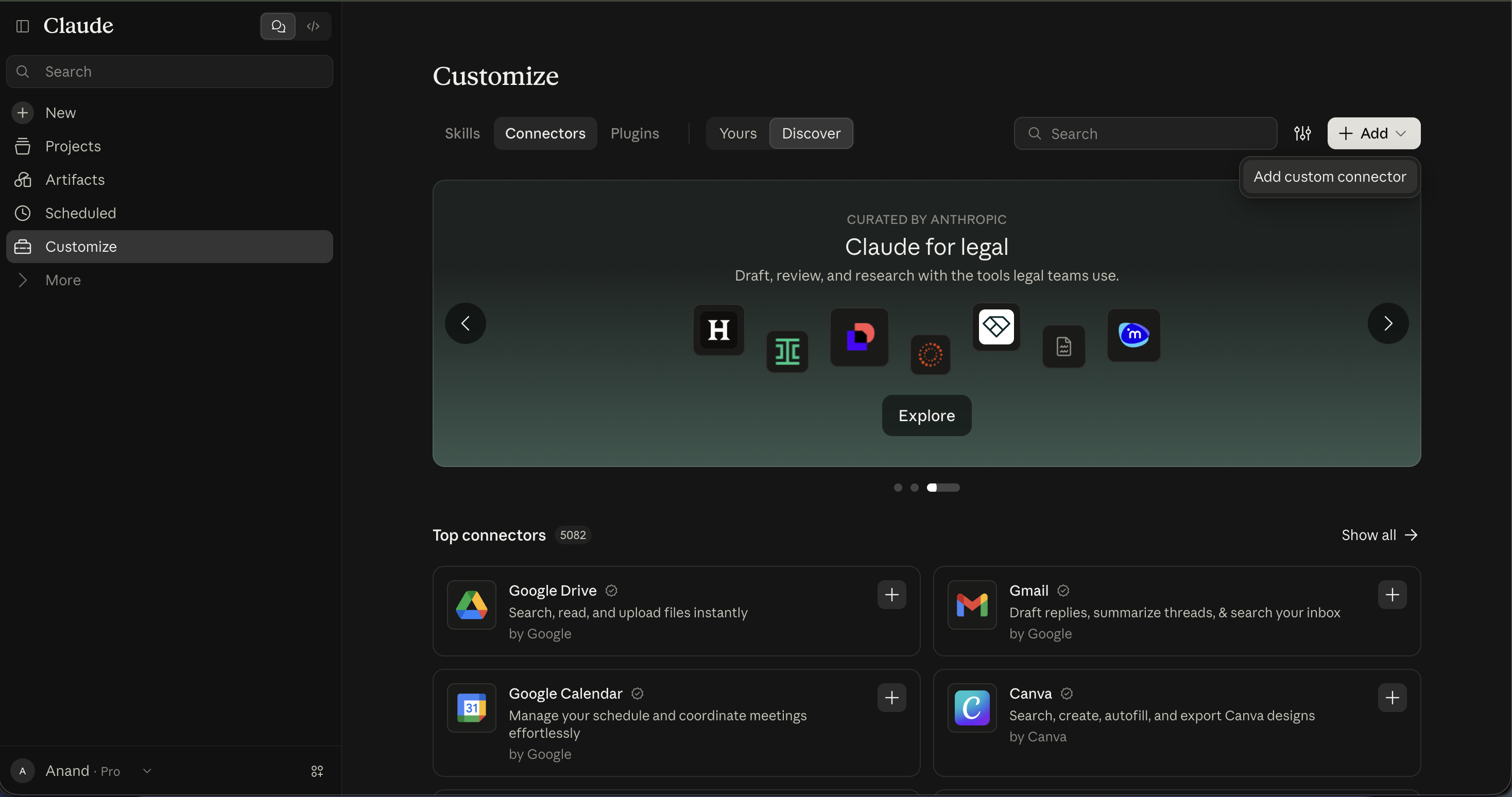
- Add a custom connector
On the Connectors tab, click Add in the top right, then choose Add custom connector.
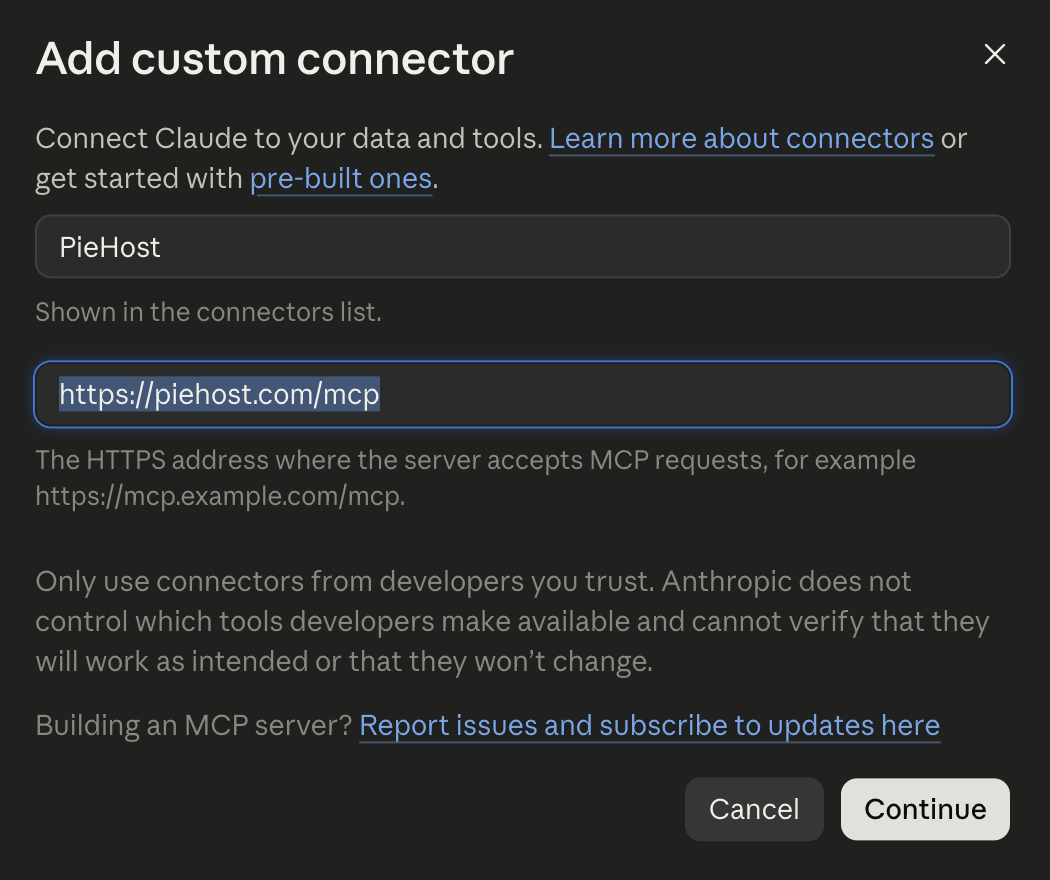
- Point it at Pie.host
Fill in the form:
- Name:
PieHost - URL:
https://piehost.com/mcp
Click Continue.
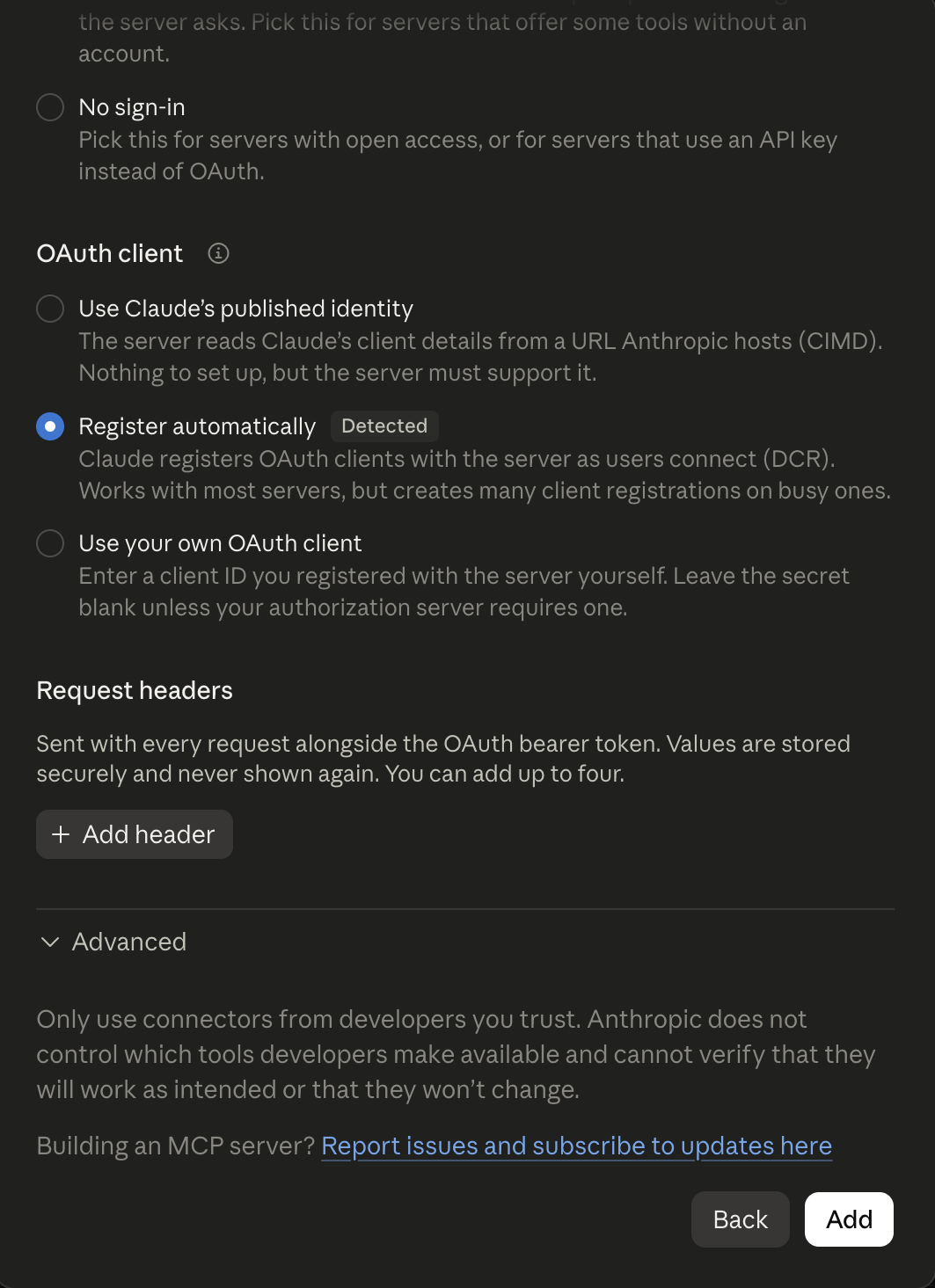
- Confirm the OAuth client setting
Leave Register automatically selected under OAuth client, no headers or advanced settings are needed. Click Add.
- Connect your account
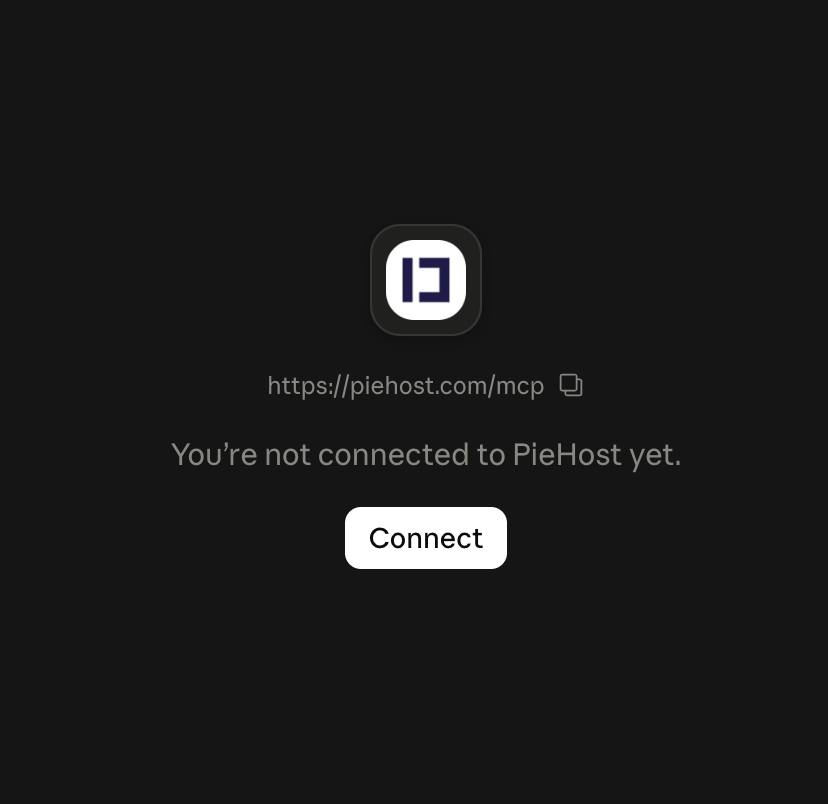
PieHost now shows up in your connectors list but isn't linked to your account yet. Click Connect.
- Authorize on Pie.host
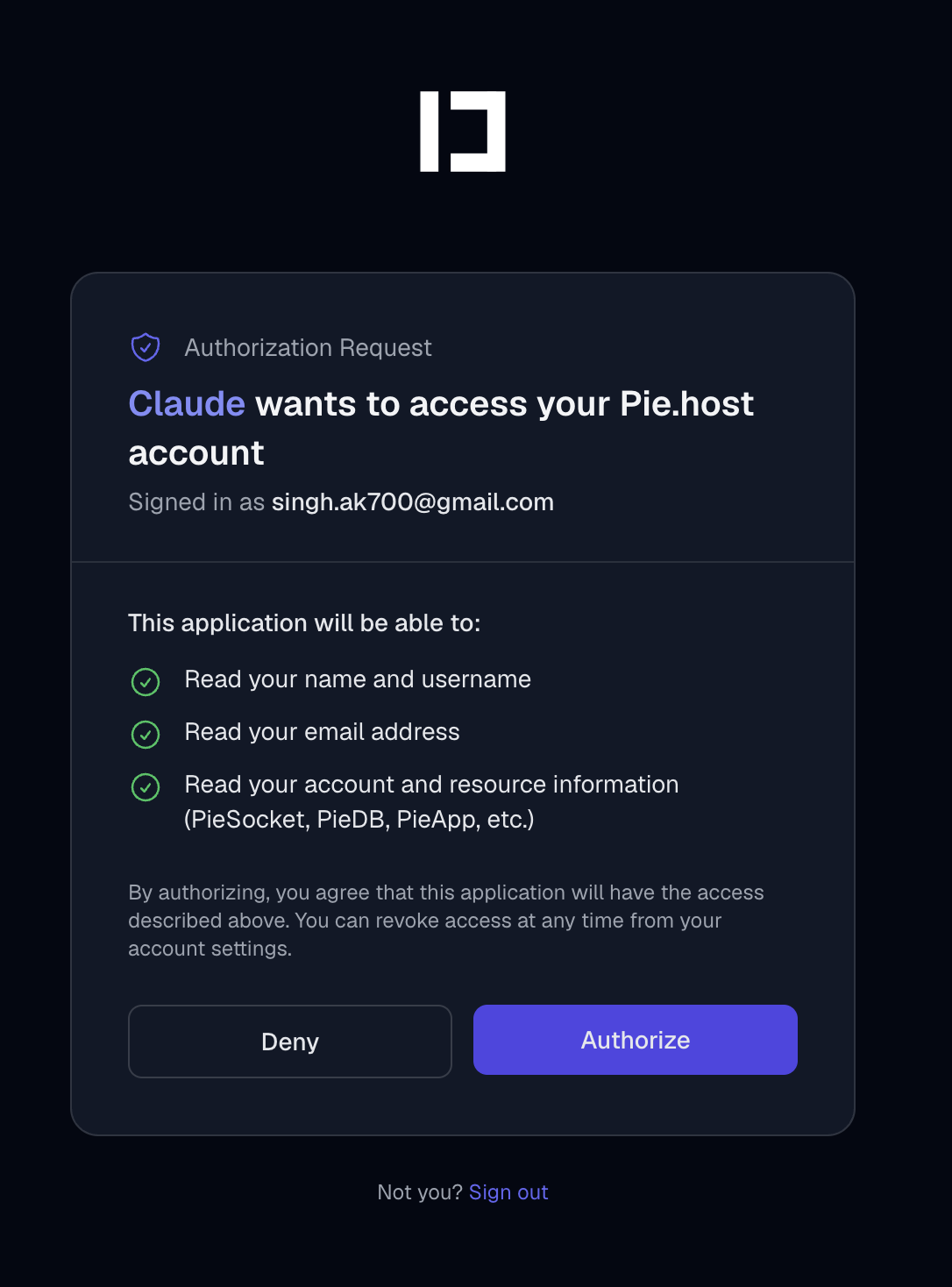
You'll be redirected to Pie.host to sign in (if you aren't already) and approve the request. Claude asks to read your name, email, and your account/resource information (PieSocket, PieDB, PieApp, etc.). Click Authorize.
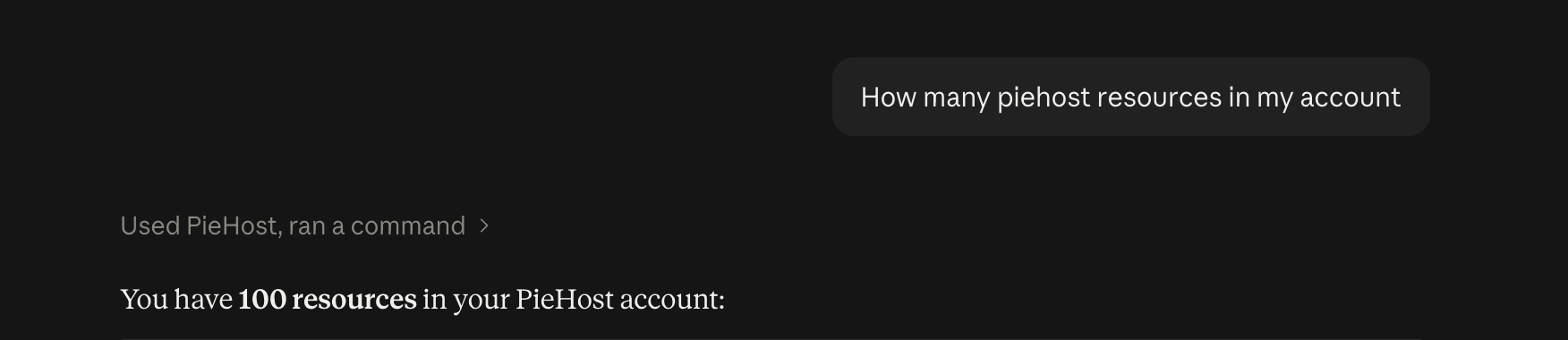
That's it, PieHost is now an active connector. You can ask Claude things like "how many PieHost resources are in my account" and it'll call the MCP server on your behalf.
See the MCP server docs for the full list of tools it exposes, what each one returns, and what data Claude can and can't access.
You can revoke access at any time from your Pie.host connected apps settings or from Claude's connector settings.