

Rabikant Singh
Nov 19, 2024
How to make a real-time location tracking app in JavaScript.
In this blog we are going to learn about location traking with JavaScript using WebSocket.
What is Location Sharing?
Location sharing is using GPS devices to share your current location to others. Mobile apps use GPS to determine our current location and share it with others. For example, Google Maps helps people share their location with friends and family. Location tracking is also useful to track objects' location to avoid losing them. Location tracking technology is getting used every day in various type of applications like GPS navigation, digital pictures, and searching for businesses nearby using common apps.
There are two types of monitoring systems. First is “time lag” system. Time lag system logs an event once a defined indication parameter is passed. And the second one is “real-time” system. Real time systems use satellite to determine the location of the person or the object using triangulation.
Location-based tracking is a similar concept that helps in tracking user's physical location with using GPS. Many android and iOS apps today use location-based services, where these apps extract the user device’s current location.
What is Location Sharing in Apps?
Location sharing in apps enables users to share real-time locations with others. This feature is found in many apps like social media, navigation, and family safety apps.
These apps use various technologies, including GPS and cellular data, to determine your location and share it with others. Certain apps are specifically designed for families to monitor each other’s locations for safety. These apps help children stay informed about their child's location. Location sharing apps can also help to find each other in a crowded place or while traveling.
Other than GPS based location sharing, there are also location based services that can track a user’s physical location without using GPS. These services are used in apps to deliver location specific content or service, like local weather forecast or restaurant recommendations.
What is JavaScript?
JavaScript was invented in 1995 by Brendan Eich. It was developed for Netscape and became the ECMA-262 standard in 1997. JavaScript is used to make functional web pages. JavaScript enables dynamic updating of web pages. JavaScript is also known JS, it is a backbone of the internet with HTML and CSS. It is useful in creating complex features on websites. JavaScript, with HTML and CSS, lays the groundwork for web development. JavaScript can modify HTML and CSS code to change the website's look. JavaScript can be used for calculations, modify data, and validate data. It can make animations in websites and manage multimedia etc.
What is HTML?
It is evident that there is HTML, or more commonly known as HyperText Markup Language. The language is common when developing websites. Third, it is a markup language that structures web content and lets us modify contents like texts, videos, and pictures etc. during a site. HTML stands for HyperText Markup Language. During his year in CERN, Berners-Lee developed his dream of a new kind of networked hypertext system, which he called the World Wide Web. This dream, realized with HTML among other technologies, has changed the way many people access and utilize information.
In 1989, Tim Berners-Lee invented HTML. When he was working at CERN, Berners-Lee had an idea about coming up with a networked hypertext system referred to as ‘the World Wide Web’. One of the main breakthroughs he made was to create HTML so that there could be internet.
Some versions of HTML have come and gone, introducing new features as well as retiring old ones. In 2014, HTML5 was finalized; it supports embedding audio and video in web pages while also having several other capabilities.
HTML documents are composed of elements, which are written as tags in angle brackets, e.g.
What is Leaflet?
Volodymyr Agafonkin created Leaflet it is an open-source library that is used for creating mobile-friendly maps. It has become the leading tool in the field of web mapping. The leaflet is very lightweight, being only 43 KB in size, and still, it provides all the mapping features you will need. It is designed with simplicity in usability and performance. It can work on all major platforms and can be extended with plugins. One of the strengths of leaflet.js is its extensibility. It can be augmented with different types of plugins. The plugins allow developers to add custom functionality and features as needed. This make leaflet very customizable for every developer's need.
Leaflet also provides a very well documented API. This make using and integrating Leaflet in your projects very easy even if you are a beginner or an expert. The API documents gives very clear and concise explanations of the features of Leaflet library.
Leaflet is also open-source and has simple, readable source code, so it is very easy to contribute to the Leaflet library. This makes contribution to code by other developers very easy.
Create an HTML file and import the CSS and JS CDN from leafletjs.com. Make sure that you import CSS before JS.
<head>
    <title>Geolocation</title>
    <link rel="stylesheet" href="<https://unpkg.com/leaflet@1.8.0/dist/leaflet.css>" />
    <link rel="stylesheet" href="<https://unpkg.com/leaflet-routing-machine@latest/dist/leaflet-routing-machine.css>" />
</head>
Now we need to import PieSocket so add the following script in head tag.
<script src="<https://unpkg.com/piesocket-js@5>"></script>
Then configure PieSocket with cluster_id and api_key.
        var piesocket = new PieSocket.default({
            clusterId: "CLUSTER_ID",
            apiKey: "YOUR_API_KEY",
            notifySelf: true,
        });
PieSocket.default: This is the default export from the PieSocket library. It’s a constructor function that creates a new PieSocket instance.
clusterId: "s12194.nyc1": This is the cluster_id we got from PieHost In this case, This is an ID of a cluster that is located in New York City. apiKey: "W6ORe4WmRHGjXBs7J7J79vPfS6MB0LrH3upgU1Xc": This is the API that we got from PieHost, This key is used to authenticate your appliance with PieSocket service.
notifySelf: true: This feature allows you to see your own sent messages.
var userMarker, newMarker, routing control;
        function initMap(lat, lng) {
            map = L.map('map').setView([lat, lng], 11);
            mapLink = "<a href='<http://openstreetmap.org>'>OpenStreetMap</a>";
            L.tileLayer('http://{s}.tile.osm.org/{z}/{x}/{y}.png', { attribution: 'Leaflet © ' + mapLink + ', contribution', maxZoom: 18 }).addTo(map);
            userMarker = L.marker([lat, lng]).addTo(map);
        }
This creates a new marker at the provided latitude and longitude and adds it to the map. This marker represents the user’s location.
 initMap(position.coords.latitude, position.coords.longitude);

            map.on('click', function (e) {
                if (newMarker) {
                    newMarker.setLatLng([e.latlng.lat, e.latlng.lng]);
                } else {
                    newMarker = L.marker([e.latlng.lat, e.latlng.lng]).addTo(map);
                }piesocket
                if (routingControl) {
                    map.removeControl(routingControl);
                }
                routingControl = L.Routing.control({

                    waypoints: [
                        L.latLng(userMarker.getLatLng().lat, userMarker.getLatLng().lng),
                        L.latLng(newMarker.getLatLng().lat, newMarker.getLatLng().lng)
                    ]
                }).addTo(map);piesocket

                console.log(userMarker._latlng, newMarker._latlng, routingControl);

            });
New Marker Placement: if a newMarker already exists, it is location gets updated to the clicked location. If it doesn’t exist, a new marker is created.
Routing Control Removal: if a routing control already exists, it is removed from the map. the routing control displays the route on the map.
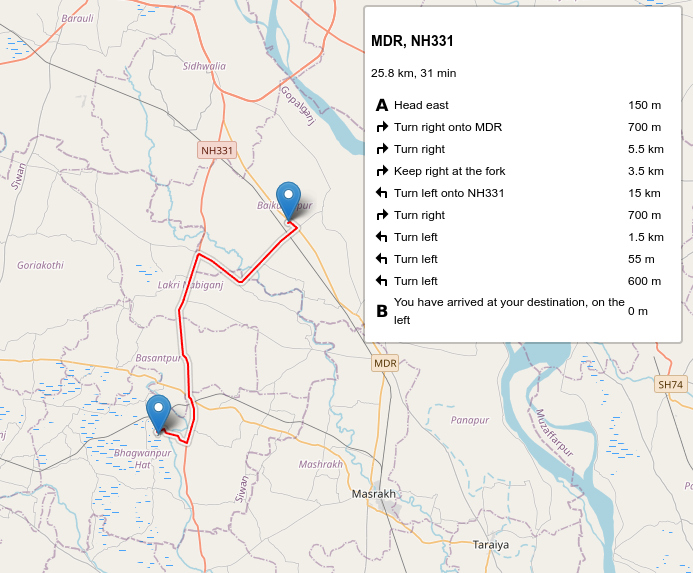
New Routing Control: This routing control creates two waypoints with the locations of userMarker to newMarker.
broadcastVote = (userMarker, newMarker) => {
                    channel.publish("route", JSON.stringify({ userMarker: userMarker._latlng, new marker: newMarker._latlng, }));
                  };
                if (navigator.geolocation) {
                    navigator.geolocation.watchPosition(function (position) {
                        var latitude = position.coords.latitude;
                        var longitude = position.c                                                                                                                                                                                                                                                                                                                                                                                                                                                                                                                                                                                                                             oords.longitude;
                        console.log("Latitude: " + latitude + ", Longitude: " + longitude);
                        channel.publish("updateUserMarker", JSON.stringify({ latitude: latitude, longitude: longitude }));

                    }, function (error) {
                        console.error("Error occurred: " + error.message);
                    });
                } else {
                    console.log("Geolocation is not supported by this browser.");
                }
The navigator.geolocation.watchPosition method is called to update the location information as the device’s location changes. This function takes the position object as a parameter, which contains the coordinates object with latitude and longitude properties. The latitude and longitude are logged to the console and then published to a PieSocket channel with the event name “updateUserMarker”. The data published is a JSON string containing the latitude and longitude.
Geolocation Not Supported: If Geolocation is not supported by the user’s browser, a message is logged to the console stating “Geolocation is not supported by this browser.”
  channel.listen("updateUserMarker", (data) => {
                    const location = JSON.parse(data);
                    if (userMarker) {
                        userMarker.setLatLng([location.latitude, location.longitude]);
                    } else {
                        userMarker = L.marker([location.latitude, location.longitude]).addTo(map);
                    }
                    console.log(userMarker);
                });
The argument to channel.listen is a callback function that is executed whenever the “updateUserMarker” event is triggered. This function takes one parameter, data, which is the data published to the event.
channel.listen("route", (data) => {
                const lagLng = JSON.parse(data);
                userMarker.setLatLng([lagLng.userMarker.lat, lagLng.userMarker.lng]);
                newMarker.setLatLng([lagLng.newMarker.lat, lagLng.newMarker.lng]);
                if (routingControl) {
                    routingControl.getPlan().setWaypoints([
                        L.latlng([lagLng.userMarker.lat, lagLng.userMarker.lng]),
                        L.latlng([lagLng.newMarker.lat, lagLng.newMarker.lng]),
                    ])
                }
            });
Event Listener: The channel.listen method is called with the event name “route”. This sets up an event listener on the PieSocket channel that listens for real-time updates on the “route” event. Callback Function: The second argument to channel.listen is a callback function that is executed whenever the “route” event is triggered. This function takes one parameter, data, which is the data published to the event. Data Parsing: The data is a JSON string that contains the updated latitude and longitude for both userMarker and newMarker. This string is parsed into a JavaScript object using JSON.parse. Updating Markers: The userMarker and newMarker locations are updated to the new latitude and longitude using the setLatLng method. Updating Route: If a routing control (routingControl) already exists, the waypoints of its plan are updated to the new locations of userMarker and newMarker. This is the complete code:
<!DOCTYPE html>
<html>

<head>
    <title>Geolocation</title>
    <link rel="stylesheet" href="<https://unpkg.com/leaflet@1.8.0/dist/leaflet.css>" />
    <link rel="stylesheet" href="<https://unpkg.com/leaflet-routing-machine@latest/dist/leaflet-routing-machine.css>" />

    <script src="<https://unpkg.com/piesocket-js@5>"></script>
    <style>
        body {
            margin: 0;
            padding: 0;
        }
    </style>
</head>

<body>
    <div id="map" style="width:100%; height: 100vh"></div>
    <script src="<https://unpkg.com/leaflet@1.8.0/dist/leaflet.js>"></script>
    <script src="<https://unpkg.com/leaflet-routing-machine@latest/dist/leaflet-routing-machine.js>"></script>
    <script>
        var piesocket = new PieSocket.default({
            clusterId: "YOUR CLUSTER ID",
            apiKey: "API KEY",
            notifySelf: true,
            presence: true,
        });

        var channel;

        var userMarker, newMarker, routingControl;

        function initMap(lat, lng) {

            map = L.map('map').setView([lat, lng], 11);
            mapLink = "<a href='<http://openstreetmap.org>'>OpenStreetMap</a>";
            L.tileLayer('http://{s}.tile.osm.org/{z}/{x}/{y}.png', { attribution: 'Leaflet © ' + mapLink + ', contribution', maxZoom: 18 }).addTo(map);
            userMarker = L.marker([lat, lng]).addTo(map);
        }
        navigator.geolocation.getCurrentPosition(function (position) {
            initMap(position.coords.latitude, position.coords.longitude);
            map.on('click', function (e) {
                if (newMarker) {
                    newMarker.setLatLng([e.latlng.lat, e.latlng.lng]);
                } else {
                    newMarker = L.marker([e.latlng.lat, e.latlng.lng]).addTo(map);
                }
                if (routingControl) {
                    map.removeControl(routingControl);
                }
                routingControl = L.Routing.control({
                    waypoints: [
                        L.latLng(userMarker.getLatLng().lat, userMarker.getLatLng().lng),
                        L.latLng(newMarker.getLatLng().lat, newMarker.getLatLng().lng)
                    ]
                }).addTo(map);

                console.log(userMarker._latlng, newMarker._latlng, routingControl);

            });
            piesocket.subscribe("chat-room").then(ch => {
                channel = ch;
                console.log("Channel is ready");

                broadcastVote = (userMarker, newMarker) => {
                    channel.publish("route", JSON.stringify({ userMarker: userMarker._latlng, newMarker: newMarker._latlng, }));
                };

                if (navigator.geolocation) {
                    navigator.geolocation.watchPosition(function (position) {
                        var latitude = position.coords.latitude;
                        var longitude = position.coords.longitude;
                        console.log("Latitude: " + latitude + ", Longitude: " + longitude);
                        channel.publish("updateUserMarker", JSON.stringify({ latitude: latitude, longitude: longitude }));

                    }, function (error) {
                        console.error("Error occurred: " + error.message);
                    });
                } else {
                    console.log("Geolocation is not supported by this browser.");
                }

                channel.listen("updateUserMarker", (data) => {
                    const location = JSON.parse(data);
                    if (userMarker) {
                        userMarker.setLatLng([location.latitude, location.longitude]);
                    } else {
                        userMarker = L.marker([location.latitude, location.longitude]).addTo(map);
                    }
                    console.log(userMarker);
                });

            channel.listen("route", (data) => {
                const lagLng = JSON.parse(data);

                userMarker.setLatLng([lagLng.userMarker.lat, lagLng.userMarker.lng]);
                newMarker.setLatLng([lagLng.newMarker.lat, lagLng.newMarker.lng]);
                if (routingControl) {
                    routingControl.getPlan().setWaypoints([
                        L.latlng([lagLng.userMarker.lat, lagLng.userMarker.lng]),
                        L.latlng([lagLng.newMarker.lat, lagLng.newMarker.lng]),
                    ])
                }

            });
        });
        });

    </script>
</body>

</html>
In this code we are using Leaflet to get the map and create the markers for our location tracking app than we are getting the marker location and updating it in real time with PieSocket.
How to run the app?
- Create an HTML file: You can do this by opening a text editor (like Notepad on Windows, TextEdit on Mac, or any code editor like Visual Studio Code, Atom, etc.). Once you’ve opened your text editor, create a new file and save it with a .html extension. For example, you might name it location.html.
- Paste the provided code: In your newly created HTML file, you can now paste the provided code. This code should be written in HTML and may include elements like scripts or links to external JavaScript files, which will provide the location tracking functionality.
- Save the file: After pasting the code, make sure to save the file. This will ensure that all of your changes are stored in the file.
- Open the HTML file in a browser: Now, navigate to the location where you saved your HTML file. You can open the HTML file in a web browser by double-clicking on the file. This should open a new tab in your default web browser, where you’ll be able to see the result of the HTML code you pasted. If the code includes location tracking functionality, it should now be ready for use.
- Allow location access: Depending on the specifics of the code, you may need to grant permission for the page to access your location. This is typically done through a prompt that appears at the top or bottom of your browser when you open the page.
Complete Code
The project is available on our GitHub : https://github.com/piehostHQ/js-location-sharing