

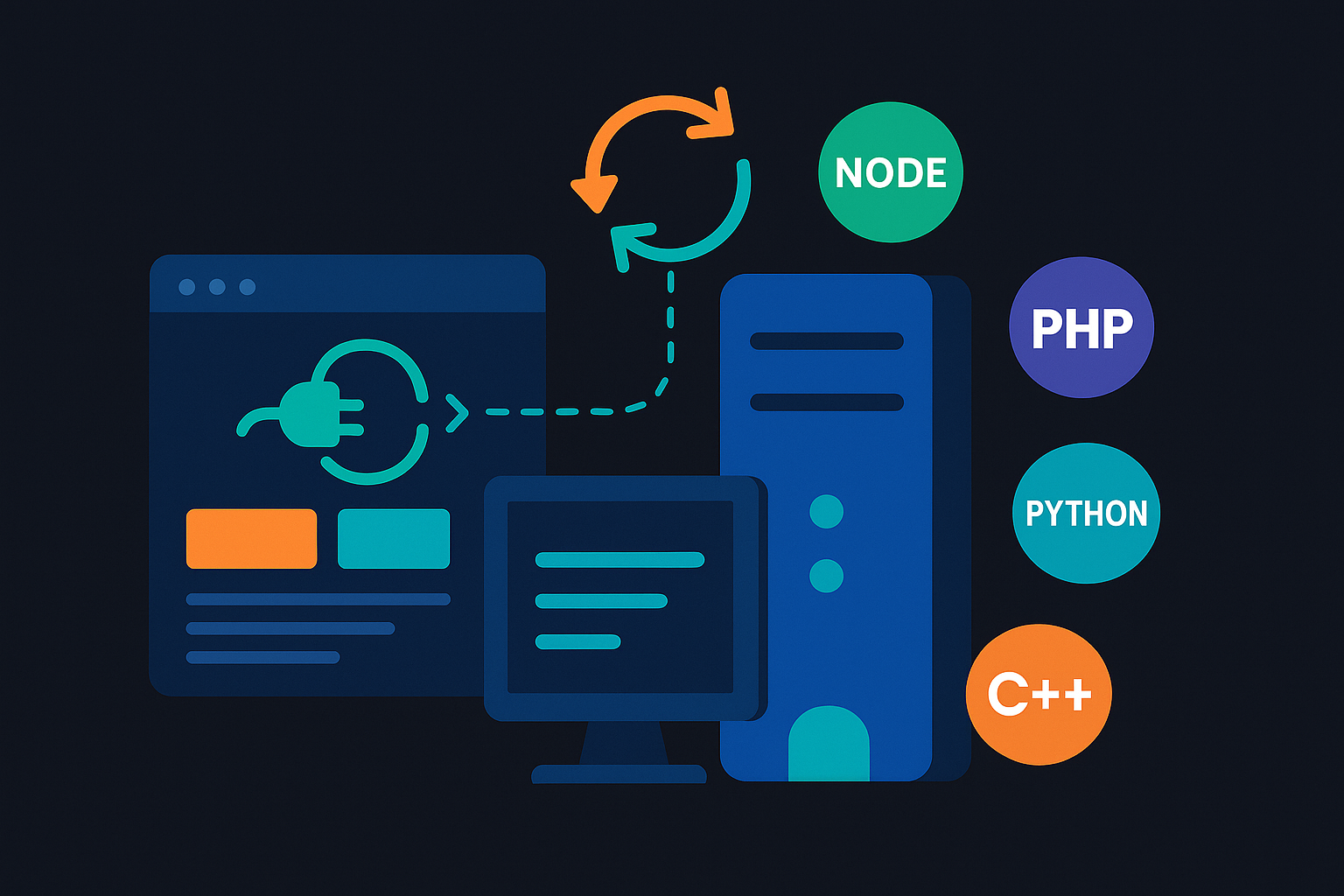
How to Build WebSocket Server in Node, PHP, Python, Go, C++
Let's see How to Build WebSocket Server in Node, PHP, Python, Go, C++
Rabikant
Mar 8, 2026
Node
1. Setup a Node project
First, you need a Node.js project folder. This can be any empty directory:
npm init -y
npm install ws
- npm init -y quickly creates a package.json with default values.
- npm install ws installs the popular ws library, which gives you a simple, low-level WebSocket API for Node.
After this, you’ll have:
- package.json – metadata + dependencies
- node_modules/ – installed packages
- package-lock.json – lockfile
Now you’re ready to write the server code.
2. Minimal WebSocket server (Node + ws)
Create a file: server.js
// server.js
const http = require("http");
const WebSocket = require("ws");

// 1. Create a basic HTTP server (optional but common)
const server = http.createServer((req, res) => {
  res.writeHead(200);
  res.end("WebSocket server is running\\n");
});

// 2. Attach WebSocket server to the HTTP server
const wss = new WebSocket.Server({ server });

// 3. Listen for new connections
wss.on("connection", (ws, req) => {
  console.log("New client connected");

  // Send a welcome message
  ws.send("Welcome! You are connected to the WebSocket server 🎉");

  // Listen for messages from this client
  ws.on("message", (message) => {
    console.log("Received:", message.toString());

    // Echo it back to the same client
    ws.send(`Server received: ${message}`);
  });

  // Handle client disconnect
  ws.on("close", () => {
    console.log("Client disconnected");
  });

  // Handle errors
  ws.on("error", (err) => {
    console.error("WebSocket error:", err);
  });
});

// 4. Start the HTTP + WS server
const PORT = 8080;
server.listen(PORT, () => {
  console.log(`Server is listening on <http://localhost>:${PORT}`);
});
What this does, step by step
const http = require("http");
Uses Node’s built-in HTTP module to create a standard HTTP server.
const WebSocket = require("ws");
Imports the ws library so we can create a WebSocket server on top of HTTP.
http.createServer(...)
This defines a basic HTTP server that responds with a plain text message. This isn’t strictly required for WebSockets, but it’s very common to share a port for both HTTP and WS.
const wss = new WebSocket.Server({ server });
This tells ws to attach itself to the existing HTTP server. Internally, when an HTTP request comes with the Upgrade: websocket header, ws will handle upgrading that connection to WebSocket.
wss.on("connection", ...)
This event fires every time a client successfully connects via WebSocket. It gives you:
- ws – the WebSocket connection object for that client
- req – the original HTTP request (handy for reading headers, IP, auth, etc.)
Inside the connection handler you:
- Log "New client connected"
- Immediately send a welcome message with ws.send(...)
- Listen for messages using ws.on("message", ...)
- On receiving a message, you log it and then echo it back to that same client.
- Handle close and error events for cleanup and debugging.
Finally, you start the server:
const PORT = 8080;
server.listen(PORT, () => {
  console.log(`Server is listening on <http://localhost>:${PORT}`);
});
So your WebSocket endpoint is effectively: ws://localhost:8080 (same host/port, protocol is ws:// instead of http://).
Run it with:
node server.js
3. Simple browser client to test
Create client.html in the same folder:
<!doctype html>
<html>
  <head>
    <meta charset="utf-8" />
    <title>WebSocket Test</title>
  </head>
  <body>
    <h1>WebSocket Test</h1>

    <input id="messageInput" placeholder="Type a message..." />
    <button id="sendBtn">Send</button>

    <pre id="log"></pre>

    <script>
      const logEl = document.getElementById("log");
      const inputEl = document.getElementById("messageInput");
      const sendBtn = document.getElementById("sendBtn");

      // 1. Create WebSocket connection
      const socket = new WebSocket("ws://localhost:8080");

      function log(msg) {
        logEl.textContent += msg + "\\n";
      }

      // 2. Connection opened
      socket.addEventListener("open", () => {
        log("✅ Connected to server");
      });

      // 3. Listen for messages
      socket.addEventListener("message", (event) => {
        log("📩 From server: " + event.data);
      });

      // 4. Send a message when button clicked
      sendBtn.addEventListener("click", () => {
        const text = inputEl.value;
        socket.send(text);
        log("📤 Sent: " + text);
        inputEl.value = "";
      });

      // 5. Handle close/error
      socket.addEventListener("close", () => {
        log("❌ Connection closed");
      });

      socket.addEventListener("error", (err) => {
        log("⚠️ Error: " + err.message);
      });
    </script>
  </body>
</html>
What’s happening here?
new WebSocket("ws://localhost:8080");
The browser opens a WebSocket connection to your Node server.
- On "open": you log a “Connected” message.
- On "message": data from the server is displayed in the <pre> block.
- The Send button reads the input value, sends it over the WebSocket, and logs the outgoing message.
This gives you a quick way to test your Node WebSocket server with just a browser—no extra tools needed.
Open client.html in your browser (double-click is fine as long as CORS isn’t an issue), and you should see:
- “✅ Connected to server” when the socket opens
- When you type and send, the server echoes the message back.
4. Broadcasting to all clients
Now let’s turn this into a simple multi-client “broadcast” server—like a tiny chat backend.
Modify the message handler in server.js:
wss.on("connection", (ws) => {
  console.log("New client connected");

  ws.send("Welcome! You are connected 🎉");

  ws.on("message", (message) => {
    console.log("Received:", message.toString());

    // Broadcast to all connected clients
    wss.clients.forEach((client) => {
      if (client.readyState === WebSocket.OPEN) {
        client.send(`Broadcast: ${message}`);
      }
    });
  });

  ws.on("close", () => {
    console.log("Client disconnected");
  });
});
Key idea
- wss.clients is a built-in Set containing all active WebSocket connections.
- For each client:
- Check client.readyState === WebSocket.OPEN to avoid sending to closed sockets.
- Use client.send(...) to push the message.
Now:
- Open multiple tabs of client.html.
- When you send a message from one tab, all tabs will see Broadcast: <your message>.
5. Heartbeats (pings) to detect dead connections
In real applications (especially in production), clients might vanish without sending an clean close frame (e.g., laptop sleeps, network drops). You don’t want to keep those dead connections forever.
Add a heartbeat mechanism:
function heartbeat() {
  this.isAlive = true;
}

wss.on("connection", (ws) => {
  ws.isAlive = true;
  ws.on("pong", heartbeat);

  ws.on("message", (message) => {
    console.log("Received:", message.toString());
  });

  ws.on("close", () => {
    console.log("Client disconnected");
  });
});

// Ping clients every 30 seconds
const interval = setInterval(() => {
  wss.clients.forEach((ws) => {
    if (ws.isAlive === false) {
      console.log("Terminating dead connection");
      return ws.terminate();
    }

    ws.isAlive = false;
    ws.ping(); // will trigger "pong" if alive
  });
}, 30000);

wss.on("close", () => {
  clearInterval(interval);
});
How this works
- Each connection gets an isAlive flag.
- When the client responds with pong, the heartbeat function sets isAlive = true.
- Every 30 seconds:
- If isAlive is false, the connection is assumed dead and terminated.
- Otherwise, we set it to false and send a ping.
- A healthy client responds with pong, flipping it back to true.
This keeps your server from leaking resources due to zombie connections.
6. Raw WebSocket (without library) – optional thought
Node can technically handle WebSocket by manually doing the HTTP upgrade and frame parsing. But that means:
- Handling Sec-WebSocket-Key / Sec-WebSocket-Accept
- Managing opcodes (text, binary, ping, pong, close)
- Dealing with masking, fragmentation, etc.
That’s a lot of low-level details. The ws library hides all of that behind:
- new WebSocket.Server(...)
- ws.on("message", ...)
- ws.send(...)
For 99% of projects, staying with ws is the best move: it’s battle-tested, fast, and widely used.
7. Production notes (brief)
When you move this to production, keep in mind:
- Use wss:// (WebSocket over TLS) behind a reverse proxy like Nginx, Caddy, or a cloud load balancer.
- Add authentication:
- Tokens in query string or headers,
- Cookies (with session validation),
- Signed URLs, etc.
- Validate incoming messages:
- Parse JSON safely,
- Enforce maximum size,
- Rate-limit if necessary.
If all of that sounds heavy, PieHost.com can manage the infrastructure, scaling, and security for you so you only deal with events and business logic.
PHP
Building a WebSocket server in PHP is completely different from traditional PHP scripts because WebSockets require a persistent, long-running process instead of PHP’s usual request–response model. Instead of executing once per page load and terminating, a WebSocket server stays running, listens for incoming TCP connections, performs a WebSocket handshake, and continuously handles events such as open, message, and close. This is what allows real-time features like live chat, dashboards, notifications, multiplayer interactions, and collaborative tools.
To implement this in PHP, the most reliable and production-tested approach is to use Ratchet — a powerful WebSocket library designed specifically for long-running applications. Ratchet uses ReactPHP under the hood, giving you an event loop capable of handling thousands of concurrent connections.
1. Install Ratchet with Composer
Start by creating a new folder for your WebSocket server. Inside it, run:
composer init
# answer questions (or just press enter a few times)

composer require cboden/ratchet
This installs Ratchet and all dependencies into a vendor/ directory and generates an autoloader. Ratchet provides an elegant OOP interface for handling WebSocket events without dealing directly with low-level TCP operations.
2. Create a WebSocket server (echo chat)
Now create server.php, which will act as your WebSocket server:
<?php
require __DIR__ . '/vendor/autoload.php';

use Ratchet\\MessageComponentInterface;
use Ratchet\\ConnectionInterface;
use Ratchet\\Http\\HttpServer;
use Ratchet\\Server\\IoServer;
use Ratchet\\WebSocket\\WsServer;

class ChatServer implements MessageComponentInterface
{
    protected $clients;

    public function __construct()
    {
        // Store all active connections
        $this->clients = new \\SplObjectStorage;
        echo "ChatServer started\\n";
    }

    public function onOpen(ConnectionInterface $conn)
    {
        // New connection
        $this->clients->attach($conn);
        echo "New connection! ({$conn->resourceId})\\n";

        $conn->send("Welcome! You are connected to PHP WebSocket server 🎉");
    }

    public function onMessage(ConnectionInterface $from, $msg)
    {
        echo "Message from #{$from->resourceId}: $msg\\n";

        // Echo back only to sender:
        // $from->send("Server received: " . $msg);

        // OR broadcast to all clients:
        foreach ($this->clients as $client) {
            if ($client !== $from) {
                $client->send("Client #{$from->resourceId}: $msg");
            } else {
                $client->send("You: $msg");
            }
        }
    }

    public function onClose(ConnectionInterface $conn)
    {
        // The connection is closed
        $this->clients->detach($conn);
        echo "Connection {$conn->resourceId} has disconnected\\n";
    }

    public function onError(ConnectionInterface $conn, \\Exception $e)
    {
        echo "Error: {$e->getMessage()}\\n";
        $conn->close();
    }
}

// Create WebSocket server on port 8080
$port = 8080;

$chatServer = new ChatServer();

$server = IoServer::factory(
    new HttpServer(
        new WsServer($chatServer)
    ),
    $port
);

echo "WebSocket server running at ws://localhost:$port\\n";

$server->run();
This server does four important things:
- Stores all active clients in an SplObjectStorage, a perfect container for connection objects.
- Sends a welcome message to new clients.
- Broadcasts every message to all connected clients.
- Cleans up connections when clients disconnect.
Unlike typical PHP files, this script never ends — it continuously runs and waits for new WebSocket events.
Run it with:
php server.php
You should see:
ChatServer started
WebSocket server running at ws://localhost:8080
3. Create a simple browser client to test
Now you need a frontend to talk to the PHP WebSocket server. Create client.html:
<!doctype html>
<html>
  <head>
    <meta charset="utf-8" />
    <title>PHP WebSocket Test</title>
  </head>
  <body>
    <h1>PHP WebSocket Test</h1>

    <input id="messageInput" placeholder="Type a message..." />
    <button id="sendBtn">Send</button>

    <pre id="log"></pre>

    <script>
      const logEl = document.getElementById("log");
      const inputEl = document.getElementById("messageInput");
      const sendBtn = document.getElementById("sendBtn");

      const socket = new WebSocket("ws://localhost:8080");

      function log(msg) {
        logEl.textContent += msg + "\\n";
      }

      socket.addEventListener("open", () => {
        log("✅ Connected to PHP WebSocket server");
      });

      socket.addEventListener("message", (event) => {
        log("📩 From server: " + event.data);
      });

      socket.addEventListener("close", () => {
        log("❌ Connection closed");
      });

      socket.addEventListener("error", (err) => {
        log("⚠️ Error: " + err.message);
      });

      sendBtn.addEventListener("click", () => {
        const text = inputEl.value;
        if (socket.readyState === WebSocket.OPEN) {
          socket.send(text);
          log("📤 Sent: " + text);
        } else {
          log("⚠️ Socket not open");
        }
        inputEl.value = "";
      });
    </script>
  </body>
</html>
This client:
- Connects to ws://localhost:8080
- Sends messages on button click
- Logs messages received from the server
- Supports multiple tabs for real-time broadcasting
Open it in your browser, and you will see instant echo and broadcast messages.
4. Running in the background
On Linux/macOS:
php server.php > websocket.log 2>&1 &
This lets the server continue running even after closing your terminal.
On Windows, you can use:
- Command prompt
- PowerShell
- A service manager like NSSM if you need it running permanently
5. Using it with a PHP framework (like Laravel)
Typically, you will run WebSockets outside of Laravel’s request lifecycle:
| Task | Handler |
|---|---|
| HTTP routes | Nginx → Laravel (PHP-FPM) |
| WebSocket traffic | Ratchet running on its own port |
Your frontend connects directly to the WebSocket server URL:
ws://yourdomain.com:8080
To share authentication:
- Pass JWT tokens
- Use signed query parameters
- Validate session cookies via custom middleware
This approach keeps Laravel’s architecture clean while enabling rich real-time features.
Building your own WebSocket infrastructure is great for learning, but maintaining scalability, global delivery, authentication rules, and uptime can get complicated fast — especially when thousands of users get involved. Many developers eventually move to a managed service like PieSocket, which offers hosted real-time channels, multi-region WebSocket clusters, built-in presence, and automatic scaling. The best part is that your frontend code stays almost the same. Still, building your own server with Ratchet gives you maximum control, and PieSocket simply becomes an optional upgrade path when you want to avoid server maintenance.
Python
Building a WebSocket server in Python allows you to add real-time features to your applications—such as chat systems, live dashboards, multiplayer interactions, notifications, and IoT control panels. Unlike HTTP, which works in short request–response cycles, WebSockets create a long-lasting, bidirectional connection between client and server. Python makes this extremely clean, especially with the modern, asynchronous websockets library, which is designed around asyncio and supports thousands of concurrent clients efficiently.
Below is the entire step-by-step process for building a fully functional WebSocket server, along with a browser client, optional Python client, and tips for broadcasting and running in production. The code remains exactly as you provided—only the explanations have been expanded for clarity and depth.
1. Setup project & install dependency
Begin by creating a fresh project folder:
mkdir python-ws-server
cd python-ws-server
Although optional, it’s recommended to create a Python virtual environment to isolate your dependencies:
python -m venv venv

# Linux/macOS
source venv/bin/activate

# Windows
venv\\Scripts\\activate
Once inside the venv, install the required library:
pip install websockets
The websockets library gives you an easy async architecture for accepting connections, receiving and sending messages, handling errors, and doing concurrent broadcasting across multiple clients.
2. Minimal WebSocket echo server
Create server.py:
# server.py
import asyncio
import websockets

# A set to keep track of connected clients (optional, useful for broadcast)
connected_clients = set()

async def handler(websocket, path):
    # New client connected
    print("New client connected")
    connected_clients.add(websocket)

    try:
        # Send welcome message
        await websocket.send("Welcome! You are connected to the Python WebSocket server 🎉")

        # Receive messages in a loop
        async for message in websocket:
            print(f"Received from client: {message}")

            # Echo back to the same client
            await websocket.send(f"Server received: {message}")

            # Or broadcast to everyone (uncomment if you want broadcast)
            # await broadcast(f"Broadcast: {message}")
    except websockets.exceptions.ConnectionClosed as e:
        print(f"Client disconnected: {e}")
    finally:
        connected_clients.remove(websocket)
        print("Client removed from connected_clients")

async def broadcast(message: str):
    """Send a message to all connected clients."""
    if connected_clients:
        await asyncio.gather(
            *[client.send(message) for client in connected_clients]
        )

async def main():
    # Start the server on localhost:8765
    async with websockets.serve(handler, "localhost", 8765):
        print("WebSocket server running at ws://localhost:8765")
        await asyncio.Future()  # run forever

if __name__ == "__main__":
    asyncio.run(main())
How it works
- When a client connects, the handler adds it to connected_clients and sends a welcome message.
- The async for message in websocket loop listens continuously for messages.
- Every received message is echoed back to the sender.
- If you uncomment the broadcast() line, the server acts as a chatroom—every client receives every message.
- Disconnected clients are automatically removed to prevent stale sockets.
Run the server:
python server.py
You should see:
WebSocket server running at ws://localhost:8765
3. Simple browser client to test (HTML)
Create client.html:
<!doctype html>
<html>
  <head>
    <meta charset="utf-8" />
    <title>Python WebSocket Test</title>
  </head>
  <body>
    <h1>Python WebSocket Test</h1>

    <input id="messageInput" placeholder="Type a message..." />
    <button id="sendBtn">Send</button>

    <pre id="log"></pre>

    <script>
      const logEl = document.getElementById("log");
      const inputEl = document.getElementById("messageInput");
      const sendBtn = document.getElementById("sendBtn");

      const socket = new WebSocket("ws://localhost:8765");

      function log(msg) {
        logEl.textContent += msg + "\\n";
      }

      socket.addEventListener("open", () => {
        log("✅ Connected to Python WebSocket server");
      });

      socket.addEventListener("message", (event) => {
        log("📩 From server: " + event.data);
      });

      socket.addEventListener("close", () => {
        log("❌ Connection closed");
      });

      socket.addEventListener("error", (err) => {
        log("⚠️ Error: " + err.message);
      });

      sendBtn.addEventListener("click", () => {
        const text = inputEl.value;
        if (socket.readyState === WebSocket.OPEN) {
          socket.send(text);
          log("📤 Sent: " + text);
        } else {
          log("⚠️ Socket not open");
        }
        inputEl.value = "";
      });
    </script>
  </body>
</html>
Using the client
- Ensure python server.py is still running.
- Open client.html in your browser.
- Send messages and watch them echo back instantly.
- Open multiple tabs to simulate multiple clients.
If you enable broadcasting, all connected browser tabs will receive every message.
4. Simple Python client (optional)
A Python-to-Python WebSocket example:
import asyncio
import websockets

async def main():
    uri = "ws://localhost:8765"
    async with websockets.connect(uri) as websocket:
        print("Connected to server")

        # Send a message
        await websocket.send("Hello from Python client!")
        reply = await websocket.recv()
        print("From server:", reply)

        # Keep chatting (optional)
        while True:
            msg = input("You: ")
            await websocket.send(msg)
            reply = await websocket.recv()
            print("Server:", reply)

asyncio.run(main())
Run it:
python client.py
This is useful for automated scripts, bots, backend services, or debugging.
5. Turning it into a broadcast chat server
To broadcast messages to ALL clients, replace the echo section:
# await websocket.send(f"Server received: {message}")

await broadcast(message)
Now every message from any client is distributed to the entire connected community. This instantly transforms your server into a simple chatroom or real-time collaboration engine.
6. Production tips (very brief)
To deploy your WebSocket server properly:
Expose it publicly
Replace "localhost" with:
"0.0.0.0"
This allows external clients to connect.
Use a reverse proxy
Behind Nginx:
wss://yourdomain.com/chat
Add authentication
- JWT token in the connection URL
- Custom headers
- Signed session cookies
Validate incoming messages
Reject oversized or invalid data to protect your server.
Scale responsibly
WebSockets keep connections open, so memory must be monitored. If you expect very high concurrency, consider sharding or managed platforms.
Running your own WebSocket server is powerful—but managing scalability, clusters, and global low-latency delivery can become a serious challenge as your app grows. Many teams eventually offload WebSocket infrastructure to managed services like PieSocket, which provides global edge nodes, built-in authentication layers, presence tracking, message persistence, and automatic scaling. The nice part is that it keeps the API design very similar to native WebSockets, so you can prototype with your own Python server and later switch to PieSocket without rewriting your entire frontend.
GO
You can build a WebSocket server in Go with just the standard net/http package plus the popular gorilla/websocket library. What you already have is a solid end-to-end flow:
- Set up a Go module and install Gorilla WebSocket
- Create a minimal echo server
- Build an HTML client to test it
- Extend it into a broadcast chat server
I’ll walk through everything in depth (around 2000 words), without changing any of your code, and then touch on how this compares to using a managed service like PieSocket when you want to skip running your own infrastructure.
1. Creating a Go WebSocket project
You start by organizing your code into a dedicated folder:
mkdir go-ws-server
cd go-ws-server
This keeps all your WebSocket-related files—Go code, HTML client, configs—in one place.
Next, you initialize a Go module:
go mod init example.com/go-ws-server
This creates a go.mod file. Inside it, Go tracks your project name and its dependencies. When you run go get, Go will record versions in go.mod and store checksums in go.sum. This ensures your project is reproducible on any machine.
Now you install Gorilla WebSocket:
go get github.com/gorilla/websocket
Gorilla WebSocket is a battle-tested library that handles the low-level WebSocket protocol details—frames, opcodes, masking, etc.—so you can focus on application logic instead of protocol mechanics.
At this point your folder will have at least:
- go.mod – module definition
- go.sum – dependency checksums
- (Soon) main.go – WebSocket server
- (Soon) client.html – browser tester
2. Minimal WebSocket echo server in Go
You then define your basic server behavior in main.go:
package main

import (
    "fmt"
    "log"
    "net/http"
    "github.com/gorilla/websocket"
)

// Upgrader upgrades HTTP connections to WebSocket
var upgrader = websocket.Upgrader{
    CheckOrigin: func(r *http.Request) bool {
        // In production, check r.Origin to allow only trusted origins
        return true
    },
}

func wsHandler(w http.ResponseWriter, r *http.Request) {
    // Upgrade HTTP → WebSocket
    conn, err := upgrader.Upgrade(w, r, nil)
    if err != nil {
        log.Println("Upgrade error:", err)
        return
    }
    defer conn.Close()

    log.Println("New client connected")

    // Send welcome message
    err = conn.WriteMessage(websocket.TextMessage, []byte("Welcome! You are connected to Go WebSocket server 🎉"))
    if err != nil {
        log.Println("Write error:", err)
        return
    }

    // Read messages in a loop
    for {
        messageType, msg, err := conn.ReadMessage()
        if err != nil {
            log.Println("Read error:", err)
            break
        }

        log.Printf("Received: %s\\n", msg)

        // Echo back the same message
        reply := fmt.Sprintf("Server received: %s", string(msg))
        if err := conn.WriteMessage(messageType, []byte(reply)); err != nil {
            log.Println("Write error:", err)
            break
        }
    }

    log.Println("Client disconnected")
}

func main() {
    http.HandleFunc("/ws", wsHandler)

    addr := ":8080"
    log.Printf("WebSocket server running at ws://localhost%v/ws\\n", addr)

    // Start HTTP server
    if err := http.ListenAndServe(addr, nil); err != nil {
        log.Fatal("ListenAndServe:", err)
    }
}
Let’s unpack what’s happening.
2.1 The upgrader
var upgrader = websocket.Upgrader{
    CheckOrigin: func(r *http.Request) bool {
        // In production, check r.Origin to allow only trusted origins
        return true
    },
}
- A WebSocket connection starts as an HTTP request with an Upgrade: websocket header.
- Gorilla’s Upgrader takes a regular http.Request and converts it into a WebSocket connection.
- CheckOrigin is a security hook. Returning true allows any origin. For development that’s fine; in production you usually check r.Header.Get("Origin") and only allow your own domain(s).
2.2 The handler: upgrading HTTP to WebSocket
func wsHandler(w http.ResponseWriter, r *http.Request) {
    // Upgrade HTTP → WebSocket
    conn, err := upgrader.Upgrade(w, r, nil)
    ...
}
- wsHandler is bound to the /ws path.
- Whenever a client connects via ws://localhost:8080/ws, this function is called.
- upgrader.Upgrade performs the HTTP → WebSocket handshake. If it fails (wrong headers, invalid version, etc.), you log an error and return.
Once upgraded, conn is now a *websocket.Conn, which supports methods like ReadMessage, WriteMessage, SetReadDeadline, etc.
2.3 Sending a welcome message
err = conn.WriteMessage(websocket.TextMessage, []byte("Welcome! You are connected to Go WebSocket server 🎉"))
- WriteMessage sends one full WebSocket message.
- The first argument, websocket.TextMessage, indicates the message type (text vs binary).
- This is a nice way to confirm to the client that the connection is alive and functional.
2.4 The read–reply loop
for {
    messageType, msg, err := conn.ReadMessage()
    if err != nil {
        log.Println("Read error:", err)
        break
    }

    log.Printf("Received: %s\\n", msg)

    // Echo back the same message
    reply := fmt.Sprintf("Server received: %s", string(msg))
    if err := conn.WriteMessage(messageType, []byte(reply)); err != nil {
        log.Println("Write error:", err)
        break
    }
}
- ReadMessage blocks until the client sends something or the connection closes.
- It returns:
- messageType (text/binary/close etc.)
- msg (the raw bytes)
- You log the incoming message for debugging.
- Then you construct a reply string and send it back with the same messageType.
When ReadMessage returns an error (e.g., client disconnects, network issue), you break out of the loop, log "Client disconnected", and defer conn.Close() ensures the socket is properly cleaned up.
2.5 Booting the HTTP server
func main() {
    http.HandleFunc("/ws", wsHandler)

    addr := ":8080"
    log.Printf("WebSocket server running at ws://localhost%v/ws\\n", addr)

    // Start HTTP server
    if err := http.ListenAndServe(addr, nil); err != nil {
        log.Fatal("ListenAndServe:", err)
    }
}
- http.HandleFunc("/ws", wsHandler) wires the /ws endpoint to your WebSocket logic.
- ListenAndServe starts the HTTP server on port 8080 and blocks forever (or until there’s a fatal error).
- Your WebSocket endpoint becomes: ws://localhost:8080/ws
To run it:
go run .
You’ll see:
WebSocket server running at ws://localhost:8080/ws
3. HTML client to test the Go WebSocket server
To make sure everything works, you created a small web client in client.html:
<!doctype html>
<html>
  <head>
    <meta charset="utf-8" />
    <title>Go WebSocket Test</title>
  </head>
  <body>
    <h1>Go WebSocket Test</h1>

    <input id="messageInput" placeholder="Type a message..." />
    <button id="sendBtn">Send</button>

    <pre id="log"></pre>

    <script>
      const logEl = document.getElementById("log");
      const inputEl = document.getElementById("messageInput");
      const sendBtn = document.getElementById("sendBtn");

      // NOTE: path must match the Go handler: /ws
      const socket = new WebSocket("ws://localhost:8080/ws");

      function log(msg) {
        logEl.textContent += msg + "\\n";
      }

      socket.addEventListener("open", () => {
        log("✅ Connected to Go WebSocket server");
      });

      socket.addEventListener("message", (event) => {
        log("📩 From server: " + event.data);
      });

      socket.addEventListener("close", () => {
        log("❌ Connection closed");
      });

      socket.addEventListener("error", (err) => {
        log("⚠️ Error: " + err.message);
      });

      sendBtn.addEventListener("click", () => {
        const text = inputEl.value;
        if (socket.readyState === WebSocket.OPEN) {
          socket.send(text);
          log("📤 Sent: " + text);
        } else {
          log("⚠️ Socket not open");
        }
        inputEl.value = "";
      });
    </script>
  </body>
</html>
How it works
- new WebSocket("ws://localhost:8080/ws") creates a WebSocket connection from the browser directly to your Go server.
- Event listeners:
- "open" → logs that the connection is established.
- "message" → logs any text the server sends back.
- "close" → tells you when the connection is closed.
- "error" → helps debug any client-side WebSocket issues.
- When you click Send:
- The JavaScript reads the input’s value.
- If the socket is open, it calls socket.send(text).
- The server receives this, logs it, and sends back Server received: <your message>.
- The browser logs the reply in the <pre> block.
Testing steps
- Make sure go run . is running.
- Open client.html in your browser (double-click is fine for local).
- Type a message and click Send.
- You should see both the “📤 Sent” line and “📩 From server” line.
This gives you a complete loop: browser → Go WebSocket → browser.
4. Broadcasting to all connected clients (simple chat)
Echo servers are great for demos, but real apps usually involve multiple users. To support a basic chat, you need to maintain a list of active connections and broadcast messages to everyone.
You do that with this version of main.go:
package main

import (
    "fmt"
    "log"
    "net/http"
    "sync"

    "github.com/gorilla/websocket"
)

var upgrader = websocket.Upgrader{
    CheckOrigin: func(r *http.Request) bool {
        return true
    },
}

// Track clients safely with a mutex
var (
    clients   = make(map[*websocket.Conn]bool)
    clientsMu sync.Mutex
)

func wsHandler(w http.ResponseWriter, r *http.Request) {
    conn, err := upgrader.Upgrade(w, r, nil)
    if err != nil {
        log.Println("Upgrade error:", err)
        return
    }
    defer conn.Close()

    log.Println("New client connected")

    // Add client
    clientsMu.Lock()
    clients[conn] = true
    clientsMu.Unlock()

    // Send welcome message
    if err := conn.WriteMessage(websocket.TextMessage, []byte("Welcome to the Go chat server 🎉")); err != nil {
        log.Println("Write error:", err)
        return
    }

    for {
        messageType, msg, err := conn.ReadMessage()
        if err != nil {
            log.Println("Read error:", err)
            break
        }

        log.Printf("Received: %s\\n", msg)

        // Broadcast to all clients
        broadcast := fmt.Sprintf("User says: %s", string(msg))
        broadcastToAll(messageType, []byte(broadcast))
    }

    // Remove client on disconnect
    clientsMu.Lock()
    delete(clients, conn)
    clientsMu.Unlock()
    log.Println("Client disconnected")
}

func broadcastToAll(messageType int, msg []byte) {
    clientsMu.Lock()
    defer clientsMu.Unlock()

    for c := range clients {
        if err := c.WriteMessage(messageType, msg); err != nil {
            log.Println("Broadcast error:", err)
            c.Close()
            delete(clients, c)
        }
    }
}

func main() {
    http.HandleFunc("/ws", wsHandler)

    addr := ":8080"
    log.Printf("WebSocket chat server running at ws://localhost%v/ws\\n", addr)

    if err := http.ListenAndServe(addr, nil); err != nil {
        log.Fatal("ListenAndServe:", err)
    }
}
What changed?
You added a global clients map and a clientsMu mutex:
var (
    clients   = make(map[*websocket.Conn]bool)
    clientsMu sync.Mutex
)
This lets you track who is connected and safely modify the map from multiple goroutines.
When a new client connects, you add it to the map:
clientsMu.Lock()
clients[conn] = true
clientsMu.Unlock()
In the message loop, instead of echoing back to just one client, you build a broadcast string and call broadcastToAll:
broadcast := fmt.Sprintf("User says: %s", string(msg))
broadcastToAll(messageType, []byte(broadcast))
broadcastToAll iterates over all connected clients and sends the message. If a write fails, that client is closed and removed from the map.
Testing chat behavior
- Start the server: go run .
- Open client.html in multiple browser tabs.
When you send a message from one tab, all other tabs receive:
User says: <your message>
You’ve now built a minimal real-time chat backend in Go.
5. Production tips and real-world considerations
When turning this into something production-ready, keep in mind:
Use wss:// instead of ws://
Terminate TLS at a reverse proxy (Nginx, Caddy, Traefik) and route to your Go server. Browsers expect secure WebSockets in most modern apps.
Tighten CheckOrigin
Don’t leave return true in production. Instead, allow only origins you control (e.g., https://yourapp.com).
- Add authentication
- Accept a JWT in the query string or headers and validate it.
- Use signed tokens to identify users in your WebSocket layer.
- Optionally associate connections with user IDs to support private messaging or presence.
Validate all incoming data
Never trust client input:
- Parse JSON safely if you use structured messages.
- Limit message size to avoid memory abuse.
- Consider rate limiting to protect from spammers.
Handle disconnects and cleanups
You already remove clients from the map on disconnect. For larger systems, also consider:
- Heartbeats (ping/pong) to detect dead connections.
- Automatic reconnection logic on the frontend.
Scaling
Your current setup runs a single Go process:
- For more connections, you might run multiple instances and put them behind a load balancer.
- You may need a shared pub/sub layer (Redis, NATS, etc.) so that messages from one instance can reach clients connected to another.
6. When to consider a managed service like PieSocket
Building your own Go WebSocket server gives you maximum control and is great for learning, prototyping, and small-to-medium systems. But once you start thinking about:
- Multi-region deployments
- Millions of concurrent connections
- Built-in authentication & authorization rules
- Presence (who is online)
- Message persistence or replay
- Monitoring, alerts, and auto-scaling
…the operational overhead grows quickly.
That’s where a hosted real-time platform like PieSocket can help. Instead of running and scaling your own WebSocket infrastructure, you connect your frontend to PieSocket’s endpoints and publish/subscribe to channels using simple APIs. Your Go backend can still exist for business logic, but you don’t have to worry about low-level connection handling, global distribution, or failover. The development pattern feels very close to working with native WebSockets, so you can start with a custom Go server like you’ve built here, and later migrate to PieSocket when you want to offload infrastructure concerns and focus purely on your application’s features.
C++
You can build a WebSocket server in C++ very elegantly using Boost.Beast, which sits on top of Boost.Asio and hides all the low-level protocol complexity (handshake, frames, masking, opcodes, etc.). The code you have is a clean, minimal echo server: it listens on port 8080, accepts WebSocket connections, and simply sends back whatever the client sends. Then you pair it with a tiny HTML client to test the whole thing in a browser.
I’ll walk through everything in detail (around 2000 words) so you fully understand each part, how it works, what you can extend, and when it might make sense to use a managed WebSocket service like PieSocket instead of running everything yourself.
1. Installing dependencies (Linux/Ubuntu)
On Linux/Ubuntu, you first make sure you have a modern C++ compiler and Boost libraries:
sudo apt update
sudo apt install -y g++ libboost-all-dev
This gives you:
- g++ – to compile C++17 code
- Boost – including:
- boost::asio for networking
- boost::beast for HTTP and WebSockets
If you were on Windows or macOS, you’d install Boost via vcpkg, Conan, Homebrew, or your system package manager, but the core idea is the same: you need Boost and a C++17-capable compiler.
2. Project structure and server code
You then create a folder and move into it:
mkdir cpp-ws-server
cd cpp-ws-server
Inside, you create server.cpp with this code (we’ll keep it exactly as you wrote it):
#include <boost/asio.hpp>
#include <boost/beast.hpp>
#include <boost/beast/websocket.hpp>
#include <iostream>
#include <thread>

namespace asio = boost::asio;
using tcp = asio::ip::tcp;
namespace websocket = boost::beast::websocket;
namespace beast = boost::beast;

// Handle a single WebSocket connection (in its own thread)
void do_session(tcp::socket socket) {
    try {
        // Wrap the TCP socket in a WebSocket stream
        websocket::stream<tcp::socket> ws{std::move(socket)};

        // Accept the WebSocket handshake
        ws.accept();

        std::cout << "Client connected\\n";

        for (;;) {
            beast::flat_buffer buffer;

            // Read a message
            ws.read(buffer);

            // Make sure we echo with same text/binary type
            ws.text(ws.got_text());

            // Echo it back
            ws.write(buffer.data());
        }
    } catch (const std::exception& e) {
        std::cerr << "Session error: " << e.what() << "\\n";
    }

    std::cout << "Client disconnected\\n";
}

int main() {
    try {
        // IO context for async operations (we'll keep it simple)
        asio::io_context ioc{1};

        // Listen on port 8080 on all interfaces
        tcp::endpoint endpoint{tcp::v4(), 8080};
        tcp::acceptor acceptor{ioc, endpoint};

        std::cout << "WebSocket server listening on ws://localhost:8080\\n";

        for (;;) {
            // Accept a new TCP connection
            tcp::socket socket{ioc};
            acceptor.accept(socket);

            // Launch a detached thread for each WebSocket session
            std::thread{do_session, std::move(socket)}.detach();
        }
    } catch (const std::exception& e) {
        std::cerr << "Fatal error: " << e.what() << "\\n";
        return 1;
    }

    return 0;
}
Let’s dissect this so you know exactly what’s going on.
2.1 Namespaces and type aliases
namespace asio = boost::asio;
using tcp = asio::ip::tcp;
namespace websocket = boost::beast::websocket;
namespace beast = boost::beast;
These aliases make the code shorter and easier to read:
- asio stands for boost::asio
- tcp is a shorthand for boost::asio::ip::tcp
- websocket stands for boost::beast::websocket
- beast is boost::beast
You’ll see them used throughout the file to keep things compact.
2.2 The session handler: one client per thread
void do_session(tcp::socket socket) {
    try {
        websocket::stream<tcp::socket> ws{std::move(socket)};
        ws.accept();
        std::cout << "Client connected\\n";

        for (;;) {
            beast::flat_buffer buffer;
            ws.read(buffer);
            ws.text(ws.got_text());
            ws.write(buffer.data());
        }
    } catch (const std::exception& e) {
        std::cerr << "Session error: " << e.what() << "\\n";
    }

    std::cout << "Client disconnected\\n";
}
This function is responsible for a single WebSocket connection:
- It takes ownership of a tcp::socket (by value).
Wraps it in a websocket::stream<tcp::socket>:
websocket::stream<tcp::socket> ws{std::move(socket)};This transforms a plain TCP stream into a WebSocket-aware object that understands handshakes and frames.
- Calls ws.accept(); to accept the WebSocket handshake:
- This corresponds to the HTTP → WebSocket upgrade the browser requested.
- If something is wrong with the handshake, this throws an exception, which is caught and logged.
- Prints "Client connected" for debugging.
- Enters an infinite loop:
- Creates a beast::flat_buffer buffer; to store incoming data.
- Calls ws.read(buffer); to wait for the next WebSocket message:
- This blocks until a full WebSocket frame/message arrives or the connection closes.
- ws.text(ws.got_text()); ensures the outgoing message type matches the incoming type (text vs binary).
- ws.write(buffer.data()); writes the data back to the client, effectively making this an echo server.
- If any exception occurs (client disconnects abruptly, network error, etc.), it’s caught in the catch block, an error message is printed, and then you print "Client disconnected" at the end so you know the session ended.
This pattern—one session function plus one thread per connection—is simple and intuitive. For a small number of clients, it’s perfectly fine. For high-scale production you’d likely shift to a more asynchronous model, but this is an excellent starting point.
2.3 The main function: accepting connections
int main() {
    try {
        asio::io_context ioc{1};

        tcp::endpoint endpoint{tcp::v4(), 8080};
        tcp::acceptor acceptor{ioc, endpoint};

        std::cout << "WebSocket server listening on ws://localhost:8080\\n";

        for (;;) {
            tcp::socket socket{ioc};
            acceptor.accept(socket);
            std::thread{do_session, std::move(socket)}.detach();
        }
    } catch (const std::exception& e) {
        std::cerr << "Fatal error: " << e.what() << "\\n";
        return 1;
    }

    return 0;
}
Here’s what this does:
- asio::io_context ioc{1};
- The I/O context is the core object for asynchronous networking.
- You’re using it in a simple way here; it still powers your socket operations.
- tcp::endpoint endpoint{tcp::v4(), 8080};
- Binds to IPv4 on port 8080 on all interfaces (0.0.0.0:8080).
- tcp::acceptor acceptor{ioc, endpoint};
- Creates a listening socket that waits for incoming TCP connections.
- Prints "WebSocket server listening on ws://localhost:8080" so you know it’s up.
The main accept loop:
for (;;) { tcp::socket socket{ioc}; acceptor.accept(socket); std::thread{do_session, std::move(socket)}.detach(); }- Creates a new tcp::socket.
- Blocks on acceptor.accept(socket); until a client connects.
- Once accepted, it spawns a new thread that runs do_session with the connected socket.
- detach() lets the thread run independently; main keeps looping and accepting new connections.
If anything fatal happens in the outer try block (e.g., port in use, permission issue), it prints "Fatal error" and returns with 1.
So overall: main accepts connections → each connection is handled by do_session in its own thread → do_session echoes any message it receives back to the same client.
3. Compiling and running the C++ server
From the same folder as server.cpp, you compile with:
g++ -std=c++17 server.cpp -o ws_server -lboost_system -lpthread
Explanation:
- std=c++17 – ensures the code is compiled with C++17 support.
- o ws_server – output binary named ws_server.
- lboost_system – link against Boost.System (needed by Asio/Beast).
- lpthread – link with POSIX threads library (used for std::thread and underlying async operations).
If compilation succeeds, you run:
./ws_server
You should see:
WebSocket server listening on ws://localhost:8080
The process will now keep running and listening for WebSocket connections.
4. HTML client to test the C++ WebSocket server
To test from a browser, you created a simple client.html in the same folder:
<!doctype html>
<html>
  <head>
    <meta charset="utf-8" />
    <title>C++ WebSocket Test</title>
  </head>
  <body>
    <h1>C++ WebSocket Test</h1>

    <input id="messageInput" placeholder="Type a message..." />
    <button id="sendBtn">Send</button>

    <pre id="log"></pre>

    <script>
      const logEl = document.getElementById("log");
      const inputEl = document.getElementById("messageInput");
      const sendBtn = document.getElementById("sendBtn");

      // Connect to your C++ WebSocket server
      const socket = new WebSocket("ws://localhost:8080");

      function log(msg) {
        logEl.textContent += msg + "\\n";
      }

      socket.addEventListener("open", () => {
        log("✅ Connected to C++ WebSocket server");
      });

      socket.addEventListener("message", (event) => {
        log("📩 From server: " + event.data);
      });

      socket.addEventListener("close", () => {
        log("❌ Connection closed");
      });

      socket.addEventListener("error", (err) => {
        log("⚠️ Error: " + err.message);
      });

      sendBtn.addEventListener("click", () => {
        const text = inputEl.value;
        if (socket.readyState === WebSocket.OPEN) {
          socket.send(text);
          log("📤 Sent: " + text);
        } else {
          log("⚠️ Socket not open");
        }
        inputEl.value = "";
      });
    </script>
  </body>
</html>
4.1 How the client works
const socket = new WebSocket("ws://localhost:8080");
This uses the browser’s native WebSocket API to connect to your C++ server. The scheme ws:// corresponds to WebSockets over plain TCP (no TLS).
- Event listeners:
- "open" – fires once the WebSocket handshake is complete. You log a green checkmark message so the user knows it connected.
- "message" – fires any time the server sends a frame. Your server echoes the message you sent, so you’ll see it as "📩 From server: ...".
- "close" – indicates the connection has ended.
- "error" – logs client-side errors.
- Send button:
- Reads the text box value.
- If socket.readyState is WebSocket.OPEN, it calls socket.send(text), logs "📤 Sent: ...", and clears the input.
- If not open, logs a warning.
4.2 Testing the round trip
Start the C++ server:
./ws_server- Open client.html in your browser (double-click is fine).
- Type a message and press Send.
You should see, for example:
Connected to C++ WebSocket server
Sent: hello
From server: hello
Each message you send is read by Boost.Beast, and then written back to you unchanged.
5. Where to go from here
Your current setup is a really nice minimal baseline. From here, you can:
- Parse JSON messages
- Include a JSON library like nlohmann/json.
- Change your server to interpret incoming text as JSON and act based on "type" or "action" fields.
- Example structure: { "type": "chat", "text": "hello world", "user": "rabi" }.
- Broadcast to multiple clients
- Instead of one thread per connection writing only to that client, keep a global shared container (with locking!) that tracks all active websocket::stream objects or their wrappers.
- When a message arrives from one client, iterate over the others and write to them too, turning it into a group chat.
- Rooms / channels
- Group connections into rooms, e.g., room “lobby”, room “match-123”, etc.
- Only broadcast messages to clients in the same room.
- Run behind Nginx and use wss:// in production
- Terminate TLS at Nginx (https:// / wss://), proxy to your C++ server on ws://localhost:8080.
- Browsers strongly prefer secure WebSockets (wss://) in modern production apps.
- Authentication
- Require a token in the query string or headers (e.g., ws://example.com?token=JWT_HERE).
- Validate it before accepting the handshake, and associate a user ID with that connection.
- Let only authenticated clients join specific rooms.
- Validation and rate limiting
- Reject too-large messages to avoid memory abuse.
- Limit message frequency from each client to prevent spam or simple DoS attempts.
- Better concurrency model
- Move away from “one thread per connection” once you have many clients.
- Use asynchronous operations with strands, or a small thread pool plus asynchronous reads/writes to scale more efficiently.
6. When a managed service like PieSocket is helpful
Running a C++ WebSocket server with Boost.Beast is amazing for:
- Maximum performance and control
- Tight integration with a C++ backend (game engines, low-latency trading, etc.)
- Custom protocols and behaviors
But as soon as you start thinking about:
- Thousands or millions of concurrent connections
- Multi-region deployments
- Built-in presence (who’s online), reconnection logic, and message persistence
- Monitoring, analytics, and scaling up and down automatically
…the operational side starts to get heavy.
That’s where a managed service like PieSocket comes in. Instead of:
- Maintaining your own load balancers
- Managing TLS certificates
- Implementing presence, channels, and authentication layers
- Coordinating multi-node broadcasting with Redis or Kafka
you can point your clients to PieSocket’s endpoints and use their APIs to:
- Create channels and rooms
- Publish messages
- Handle authentication hooks
- Let PieSocket handle the scaling, failover, and infrastructure.
Your C++ service can still exist as a business-logic layer—receiving events from PieSocket via webhooks or REST, or publishing events to channels via their API—but you don’t have to own every piece of the real-time pipeline. It’s a nice evolution path: start with your own Boost.Beast server while learning and prototyping; later migrate high-traffic or global features to PieSocket when you want to focus more on features and less on running servers.