

Vishal
Nov 15, 2024
How to create a MySQL admin user (super user)
A guide on how to secure MySQL with multiple super-user logins
About MySQL
MySQL is a common open source RDBMS which is now one of the largest – used databases in the world. It was originally developed in 1995 by MySQL AB of Sweden and then acquired by Sun Microsystems in 2008 and then by Oracle Corporation in 2010. As earlier indicated MySQL has become popular in database management due to its performance, reliability, and usability in all over the world.
Key Features and Architecture
MySQL is a client-server database model based on that. The MySQL server is arguably the most important component of this system since it processes all the instructions that are directed towards the database, while simultaneously making sure that the integrity of the database is not violated. Users access the server to retrieve the data, modify it, or perform other functions on the data. MySQL employs SQL as its command language which is a special language used to manage relational databases.
MySQL also has a large number of storage engines, for example InnoDB, MyISAM and others thanks to which it creates attention. InnoDB, the default storage engine of MySQL, provides fully implemented, bytes-near-ACID transaction support for data modification transactions needed to support a class of applications needing high reliability. MyISAN, on the other hand, is very fast, and convenient enough for read-only workload where transaction is not necessary.
MySQL also has reproduction, that is, copying of data from one MySQL sever to another with intention of data replication and distribution of workload. This feature will be of most importance in distributed systems where availability is immensely important. Besides, in MySQL table partitioning entails dividing a large table into several parts making it contribute to optimizing the query.
Super User
Sudo (SuperUser do) is a command in Linux that allows users to run commands with privileges that only root users have. It helps users to do tasks with administrative power without logging in as the root user.
Features
- Privilege Management: Allows authorized users to execute commands with elevated privileges.
- Logging: Logs all sudo commands to /var/log/auth.log, which is useful for auditing and troubleshooting.
- Temporary Elevation: Users can perform administrative tasks without staying in a privileged shell.
Administrative Guidelines for Superuser Control
Use Strong Passwords
Make sure that the superuser account’s password is complex, including at least capital and little letters, numbers, and gun characters.
Limit Remote Access
Remote access should only be permitted where it is necessary and then only from particular IP addresses.
Regularly Audit Activity
Supervise the superuser account operations, and look at the logs in order to identify suspicious activity.
Create Multiple Superusers
Because it is easier to manage and offer better security, the use of multiple superusers with different privileges or restriction can be an added option.
Backup User Privileges
Regularly back up MySQL user privileges: Regularly back up MySQL user privileges:
How to Install MySQL
Step 1. Update Package
Update your Package List with this command:
sudo apt update
Step 2. Install MySQL
Install MySQL server on your system with this command:
sudo apt install mysql-server
Step 3. Secure the installation
The command below lets you create a MySQL super-user on a new installation, for instructions on how to generate a root-user for an existing MySQL installation or how to create an additional super-user, please scroll down on this page.
MySQL comes with a security script to set up important security features like setting the root password, removing anonymous users, and disallowing remote root login, use thefollowing command to achieve this:
sudo mysql_secure_installation
While in this process you will be asked to create a root password, to drop anonymous users, to forbid root user login and to drop test databases. Just complete the instructions which surface on the screen and set up the server accordingly.
For Cent/RHEL
Step 1. Install MySQL repository
We will install MySQL repository using yum:
sudo yum localinstall https://dev.mysql.com/get/mysql80-community-release-el7-3.noarch.rpm
yum, or Yellowdog Updater Modified, is a free and open source package management system in existent in Linux. It is primarily intended for RPM-based Linux distributions such as Red Hat Enterprise Linux, CentOS, and Fedora.
Step 2. Install MySQL server
Run this command to install the MySQL server:
sudo yum install mysql-server
Step 3. Start MySQL server
After installing the MySQL server we need to start it:
sudo systemctl start mysqld
Step 4. Secure Installation
After installation secure our installation
sudo mysql_secure_installation
Install On Windows
Now, we will see how to install on Windows
Step 1. Download MySQL installer
Open MySQL on your favorite browser from here.

When you visit this URL a page will appear like this:

After this click on the first download button:

Click on No thanks,just start my donwload
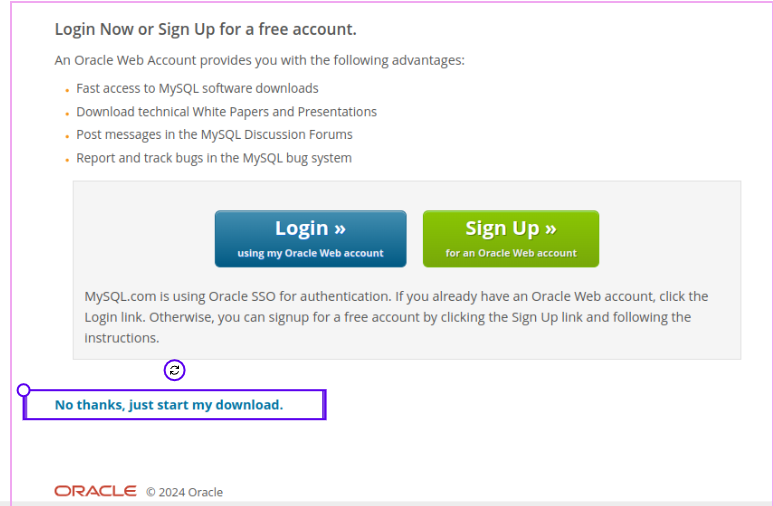
Your Download will be started and when your download is complete install it.
About Apache
Apache is a fast and flexible web server application of open-source code, which has greatly contributed to forming the current Internet. More formally unofficially called the Apache HTTP Server, it was developed and released by the Apache Software Foundation (ASF) in 1995. Since then, it has become one of the industry standard web servers, considered to be fast, highly configurable and packed with features.
In its basic form, Apache is a disseminating tool for web information and application content over the World Wide Web. It handles HTTP requests from clients (for instance web browsers) and provides the asked for results, documents or resources. Apache has a modular design as a basic concept, which has been designed in such a way that numerous modules can be developed by the users to integrate with the basic functionalities of Apache. These modules can support other works including authentications, rewriting URLs, or load distribution making Apache to be versatile.
Apache is rather flexible which can be considered as one of the company’s major benefits. Contrary to many other programming languages the server can be tailored to fit almost any requirements – from a personal Web site to a large-scale and popular application. Its configuration is made by the means of text files of which the most essential is the httpd. conf file. This Configuration file enables the system administrator to identify the parameters of the operation of the server, security features, performance and virtual hosting parameters among others.
Another significant feature is the Apache support of Virtual Hosts. Virtual hosting in addition to creating the impression of multiple Apache servers, enables one actual server to host multiple websites or domains. This is especially helpful for web hosting services providers or an organization that may be having several websites and need to host them from the one server. Apache supports both name-based and IP-based virtual hosting this allows a lot of flexibility as to how the sites are configured.
Step 1. Install Apache
Before setting up MySQL, we need a server like Apache
Very first install Apache on you system with this command
sudo apt install apache2
Step 2. Adjust Firewall
Check ufw list by running this command:
sudo ufw app list
This command might be ask for password, so just type your system password and press enter
Output
Available applications:
  Apache
  Apache Full
  Apache Secure
  CUPS
If Apache is showing in your list it means it downloaded successfully
Now give permission to apache
sudo ufw allow 'Apache'
Check the status to verify the changes
Status: active

To                         Action      From
--                         ------      ----
Apache                     ALLOW       Anywhere
Apache (v6)                ALLOW       Anywhere (v6)
Step 3. Check Apache status
Now check status of your Apache server is it active or not with this command:
sudo systemctl status apache2
Output
● apache2.service - The Apache HTTP Server
     Loaded: loaded (/usr/lib/systemd/system/apache2.service; enabled; preset: >
     Active: active (running) since Tue 2024-08-20 09:46:41 IST; 1h 0min ago
       Docs: https://httpd.apache.org/docs/2.4/
    Process: 1446 ExecStart=/usr/sbin/apachectl start (code=exited, status=0/SU>
   Main PID: 1667 (apache2)
      Tasks: 6 (limit: 18793)
     Memory: 33.5M (peak: 34.3M)
        CPU: 281ms
Create a MySQL admin user
Step 1. Open MySQL
Run this command to Open MySQL if you are creating a user for the first time:
sudo mysql
If you already have a user, it doesn't matter if it is admin or not then run this command:
sudo MySQL -u userName -p
After running that a prompt will appear for a password enter your user password and then press enter
Step 2. Creating User
You are now logged in as the root user You can now create a new superuser. This procedure involves the creation of a new user and providing him all the right to the MySQL server.
After that create a user by running this command:
CREATE USER 'vishal'@'localhost' IDENTIFIED BY 'password';
For the purpose of this example I have used ‘vishal’ as the username and ‘password’ as the Password you can use another name or password of your preference. And one has to type a strong password only for its safety’s sake.
Step 3. Grant Permissions to your user
For creating a super user we need to give all permission to our user. Run this command in your terminal:
GRANT ALL PRIVILEGES ON *.* TO 'vishal'@'localhost' WITH GRANT OPTION;
- .* indicates that the user has privileges on all databases and tables.
- WITH GRANT OPTION allows the superuser to grant the same privileges to other users.
This command will give all Grants to your user.
Step 4. Flush Privilege
Run this command to flush privilege:
FLUSH PRIVILEGES;
Step 5. Verify grants
SHOW GRANTS FOR 'username'@'host';
This command will show you all permissions you have if it showing means you are done
Step 6. Exit MySQL
when we are done then we can exit MySQL by typing this command:
exit
After this, everything is done and you are ready to use MySQL in your project