

Vishal
Nov 23, 2024
How to build a real-time chatroom with WebSocket using VueJS
How to build a real-time chatroom with WebSocket using VueJS
Create Vue App
Start by creating a Vue app by running the following code in the terminal.
npm create vue@latest
Give a name to your Vue app.
Then cd into your vue app folder.
cd vue-example-app
Install the needed dependencies.
npm install
We need to install Piesocketjs for our Vue app.
npm i piesocket-js@5
We are using ‘Tailwind’ for our CSS if you want to install Tailwind into your Vue app. you can follow the instructions here.
Writing The Code
Put this code in App.vue file
 <template>
    <div class="flex flex-col h-screen ">

      <div class="mx-2 h-full overflow-y-auto" id="message-cont">
        <p id="messages"  v-for="(msg, index) in messages" :key="index" :class="[`bg-gray-200 rounded-md w-fit px-4 py-2 m-2`, msg.isSent ? 'ml-auto' : '']"><b>{{ msg.username }}</b>: {{ msg.text }}</p>
      </div>

      <div class="m-2">
        <form @submit.prevent="SendMessage" class="flex items-center space-x-2">
          <input type="text" v-model="messageValue" id="input" name="input" class="border border-black rounded-md p-2 w-full" placeholder="type a message..." autocomplete="off">
          <button type="submit" class="bg-green-500 px-6 py-2 rounded-md">Send</button>
        </form>
      </div>

    </div>
  </template>
Explanation of this code
The line creates a div element with id of message-cont and represents the chat list interface where messages will be displayed. It uses Tailwind CSS classes to style the container: mx-2 set the horizontal margin on both sides of the component; h-full combines the component through the full height of the parent container; overflow-y-auto automatically add the components vertical scrolling functionality in case there are many messages to make all of them viewable.
Inside this container, there is an HTML paragraph element
with id=”messages” which is iterated for each message in the messages array using vuejs directive v-for The v-for directive gives, when iterating the messages array, the current object msg and the current index in the array index. The Vue needs a unique key for each message to be able to quickly identify which segment of the DOM needs to be updated when the data changes; this is specialized with key="index" binding.
The :class="[... ] binding is used to bind CSS classes on the fly to each
element. The classes bg-gray-200, rounded-md, w-fit, px-4, py-2, and m-2 are always applied to style the message with a gray background, rounded corners, the width that would be just enough to contain the message’s content, padding, and margin. As mentioned earlier, the class ml-auto is only applied when the value of msg is specified. isSent is true and the message is right aligned to make it easy to distinguish between send and received messages.
Last of all, the {{ msg. username }} and {{ msg. text }} displays the username and the text of the message. The tag surrounds {{ msg. username }} so as to highlight it so that one can easily distinguish between the username and the actual message being posted.
var channel;
var selfName;
const messages = reactive([]);
const username = "user_"+(Math.floor(Math.random() * 1000));
const messageBox = document.getElementById('message-cont');
Explanation of Each Line
var channel;
This declares a variable named channel This declare an identifier named channel. It is used in order to store PieSocket channel instance after connecting to the desired channel, for instance, “chat-room”. This instance will enable us listen for events and post messages to that channel.
var selfName;
This is declaring a variable named selfName but this particular variable was not used in the codes shown above. It was possibly going to be used to store the current user’s username or any other data. For now, the latter word choice is rather cumbersome and phrased can be used without it unless it is used in another sentence.
const messages = reactive([]);
This forms a reactive array called messages by utilizing Vue’s reactive API.
messages will store all the chat messages which is displayed on the chat user interface. Vue is reactive secondly hence it will automatically render the new messages whenever they are pushed or changed.
This array of message objects contains properties like ‘text’ to represent the text of the message, ‘isSent’ flag representing whether the message was sent by current user or not, and ‘username’ property representing username of the sender.
var username = ‘user_’+ Math. floor(Math. random() * 1000);
This just creates a random user ID for the current session, as the user is recognized.
‘user_’ is literally a string of characters, ‘_’; and Math. floor(Math. random() * 1000) will give a number from 0 to 999. These are combined to produce a singular username such as ‘user_123’.
This is particularly the case when the chat application is used to distinguish between one user and another without the occasioning of a login.
const messageBox = document. getElementById('message-cont');
This line uses the document.getElementById property to get the HTML element with the id we gave as “message-cont” which is stored in the messageBox variable.
MessageBox is the general holder for all the chat messages exchanged between the client and the company.
But this code should best be situated in the mounted hook or any other similar lifecycle method of Vue since this code needs a DOM element where it can be placed. If messageBox is called outside a lifecycle hook then it is possible that messageBox is null since the DOM is not loaded yet.
const pieSocket = new PieSocket({
  clusterId: "your_cluster_id_here",
  apiKey: "your_api_key_here",
  notifySelf: true,
  presence: true,
  userId: username
});
PieSocket is a real-time messaging service. An introduction to this code:
The line const pieSocket = new PieSocket({ ... }); initializes a new instance of the PieSocket class for real-time messaging. The configuration object passed to PieSocket contains several key properties:
- clusterId: Specifies the cluster ID to which the PieSocket client will connect. This should be a valid identifier for the cluster you're using on PieSocket.
- apiKey: This is the API key used to authenticate the client with PieSocket. The key is essential for identifying the application and granting access to PieSocket's services.
- notifySelf: true: A boolean value that determines whether messages sent by this client should also be received by the same client. Setting it to true allows the client to receive its own messages.
- presence: true: Enables presence features in PieSocket, such as user presence events (e.g., join, leave) in the connected channel. This is useful for tracking user activities within the channel.
- userId: username: A unique identifier for the user in the PieSocket system. Here, username is a variable that contains a dynamically generated user ID.
By configuring PieSocket with these settings, the client is set up to connect to a specific cluster and channel, listen for real-time events, and handle user presence events. Remember to replace "your_cluster_id_here" and "your_api_key_here" with your actual credentials securely.
pieSocket.subscribe("chat-room").then((ch) => {
  channel = ch;
  console.log("Channel is ready");

  channel.listen("system:member_joined", function(data){
    console.log(data);

  })

})
Here's a breakdown of how it works:
- pieSocket. subscribe("chat-room"): This method joins the client to a PieSocket channel with name "chat-room”. This channel will be employed for listening and posting events, so that timely communication will be made within this channel.
- . then((ch) => { . .. }): The subscribe method returns a promise that supplies a channel object if the subscription is a success. The . then() method is used for the purpose of running a function in case of the Promise has been resolved. This brings out the function that is passed on the . then() takes in a parameter of type channel, which is represented in this function by ‘ch’.
- channel = ch;: The channel variable takes the value of ch, the channel object that is passed through the subscription. This enables the code to then reference the channel object and assign it to a variable called ‘channel’ which could be used in listening to events or posting messages to the channel.
- console. log("Channel is ready");: A log message in the format {_ prefixed complete: subscribing the channel for further use}. This message will be printed in the console whenever the client’s subscription to the `"chat-room“ channel is successful.
- channel. listen("system:channel.on("member_joined", function(data) {... })`: This line will work as an event listener to listen to the events occurring in this channel object.
- "system:member_joined": The name of the event to listen for. Here, "system:member_joined" is a system event that fires when a new member joins the channel.
- function(data) { ... }: A callback function that is executed when the "system:member_joined" event occurs. The data parameter contains the event data, which typically includes information about the member who joined.
- console.log(data);: Inside the callback function, the event data is logged to the console. This data might include details about the new member who joined, such as their userId or other metadata.
Summary
This code effectively subscribes to a PieSocket channel named "chat-room" and sets up a listener for the "system:member_joined" event. When the subscription is successful, it logs a "Channel is ready" message to the console. It also listens for any new members joining the channel and logs the details of each new member to the console.
  const SendMessage = () => {

    if(messageValue.value != ''){

      channel.publish("new_message", {
        message: messageValue.value,
        sender: username
      })

      messages.push({ text: messageValue.value, isSent: true, username: 'You' });
    }
    messageValue.value = '';
  }
The SendMessage function is responsible for sending a message to the PieSocket channel and updating the local messages list in the UI. Here is a breakdown of what each part does:
- const SendMessage = () => { . .. }: This creates the SendMessage function named using the arrow function syntax. This function is meant to be called when a user wishes to send a message i. e. when the ‘send’ button is pressed.
- if (messageValue. value != '') { . .. }: This condition attempts to make sure the input of messageValue is not empty under string data type. messageValue is a reactive reference, it’s probable that it was created by using the ‘ref’ in the Vue.js framework, that stores current input value. When the input is not empty the function continues to delivery the message to its intended target.
- channel.publish("new_message", { ... }): This line publishes a new event named "new_message" to the subscribed PieSocket channel (channel). The publish method takes two parameters:
- "new_message": The name of the event being published. This event is custom and represents a new message in the chat.
- { message: messageValue.value, sender: username }: An object containing the data to be sent with the event. It includes:
- message: messageValue.value: The actual text of the message that the user has typed.
- sender: username: The identifier for the user sending the message (e.g., their username).
- messages.push({ text: messageValue.value, isSent: true, username: 'You' });: After publishing the message to the channel, the same message is added to the local messages array to update the UI immediately. The push() method adds a new message object to the messages array, containing:
- text: messageValue.value: The text of the message.
- isSent: true: A flag indicating that this message was sent by the current user (as opposed to received messages).
- username: 'You': A hardcoded string "You" to represent the current user. This differentiates the user's messages from others in the UI.
- messageValue.value = '';: Finally, the messageValue is cleared by setting it to an empty string. This resets the input field in the UI, readying it for the next message input.
Summary
The SendMessage function checks if there is a non-empty message to send. If so, it publishes the message to the PieSocket channel and adds it to the local messages array for immediate display in the chat UI. After sending, it clears the input field to prepare for a new message.
Here is the Full code
  <template>
    <div class="flex flex-col h-screen ">

      <div class="mx-2 h-full overflow-y-auto" id="message-cont">
        <p id="messages"  v-for="(msg, index) in messages" :key="index" :class="[`bg-gray-200 rounded-md w-fit px-4 py-2 m-2`, msg.isSent ? 'ml-auto' : '']"><b>{{ msg.username }}</b>: {{ msg.text }}</p>
      </div>

      <div class="m-2">
        <form @submit.prevent="SendMessage" class="flex items-center space-x-2">
          <input type="text" v-model="messageValue" id="input" name="input" class="border border-black rounded-md p-2 w-full" placeholder="type a message..." autocomplete="off">
          <button type="submit" class="bg-green-500 px-6 py-2 rounded-md">Send</button>
        </form>
      </div>

    </div>
  </template>

  <script setup>
  import { ref, reactive } from 'vue'
  import PieSocket from "piesocket-js";

var channel;
var selfName;
const messageValue = ref('')
const messages = reactive([]);
const username = "user_"+(Math.floor(Math.random() * 1000));
const messageBox = document.getElementById('message-cont');

const pieSocket = new PieSocket({
  clusterId: "free.blr2",
  apiKey: "2ZilnOus6sDs7od7bbVYQgx8LlgAfabf7yGLJlUt",
  notifySelf: true,
  presence: true,
  userId: username
});

pieSocket.subscribe("chat-room").then((ch) => {
  channel = ch;
  console.log("Channel is ready");

  channel.listen("system:member_joined", function(data){
    console.log(data);

  })

  channel.listen("new_message", (data, meta) => {
        console.log("New message: ", data);
        if(data.sender != username)
        messages.push({ text: data.message, isSent: false, username: data.sender });
  })
})

  const SendMessage = () => {

    if(messageValue.value != ''){

      channel.publish("new_message", {
        message: messageValue.value,
        sender: username
      })

      messages.push({ text: messageValue.value, isSent: true, username: 'You' });
    }
    messageValue.value = '';
  }

  </script>
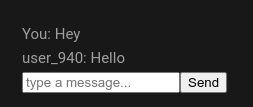
Running The Application
After that you can run your application by running this command in your terminal but remember you are in your project directory
npm run dev
Complete Code
The project is available on our GitHub : https://github.com/piehostHQ/vue-chat-app